
Author

Overview
The Refinitiv Real-Time Legacy Protocol Converter (LPC) provides network connectivity to Refinitiv data sources in Amazon Web Services (AWS) infrastructures for existing Refinitiv Wire Format and Marketfeed applications using a near zero footprint datafeed delivery method. It allows applications that use Refinitiv Real-Time SDKs, or legacy APIs, such as SFC, and RFA 7.x to consume real-time data from the Refinitiv data sources in Amazon Web Services (AWS) infrastructures without any modifications.
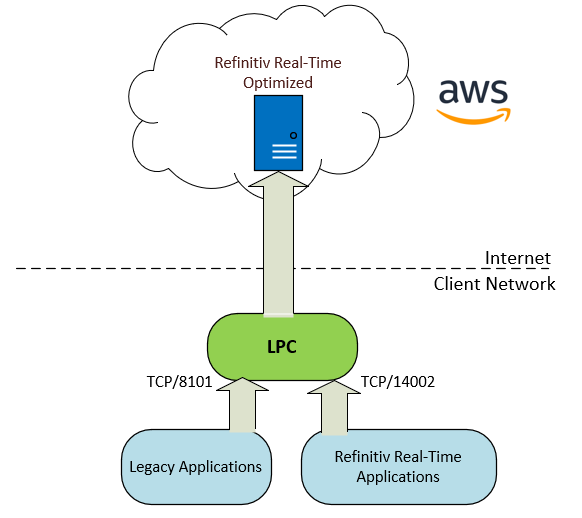
LPC can be run as a standalone application or run inside the docker container. This article explains the steps to configure and run LPC inside the docker container on Windows 10.
Prerequisites
To follow the steps in this article, you must have the following items.
- The credentials to connect to the Refinitiv Real-Time Optimized, such as machine ID and password
- The docker engine must be installed properly on the machine. For Windows 10, please refer to this Install Docker Desktop on Windows page
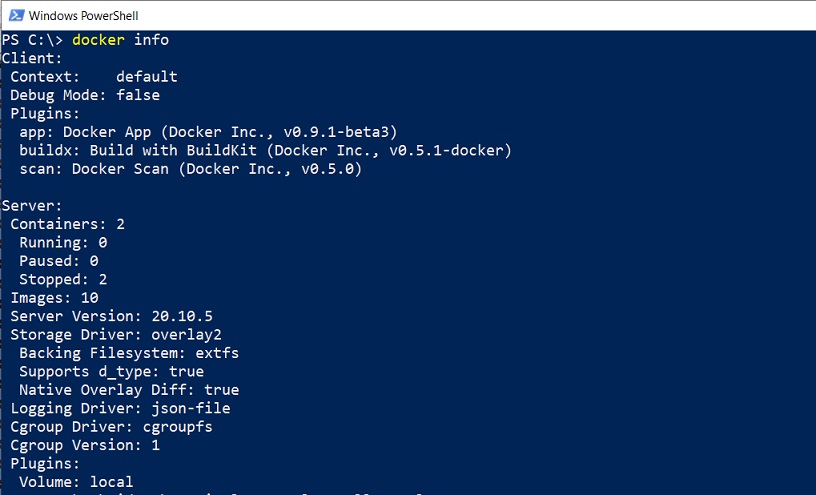
Configure and run an LPC docker container
1. Pulling the lpcdocker/lpc docker image
If the lpcdocker/lpc docker image is not available on the machine, the following command can be used to pull the lpcdocker/lpc docker image.
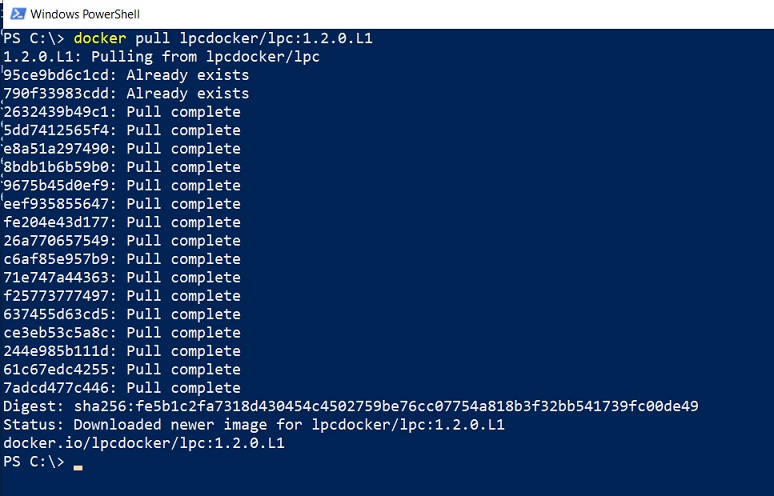
After downloading, the docker images command can be used to list all docker images available on the machine.
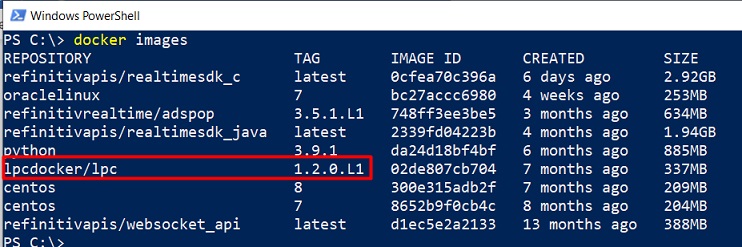
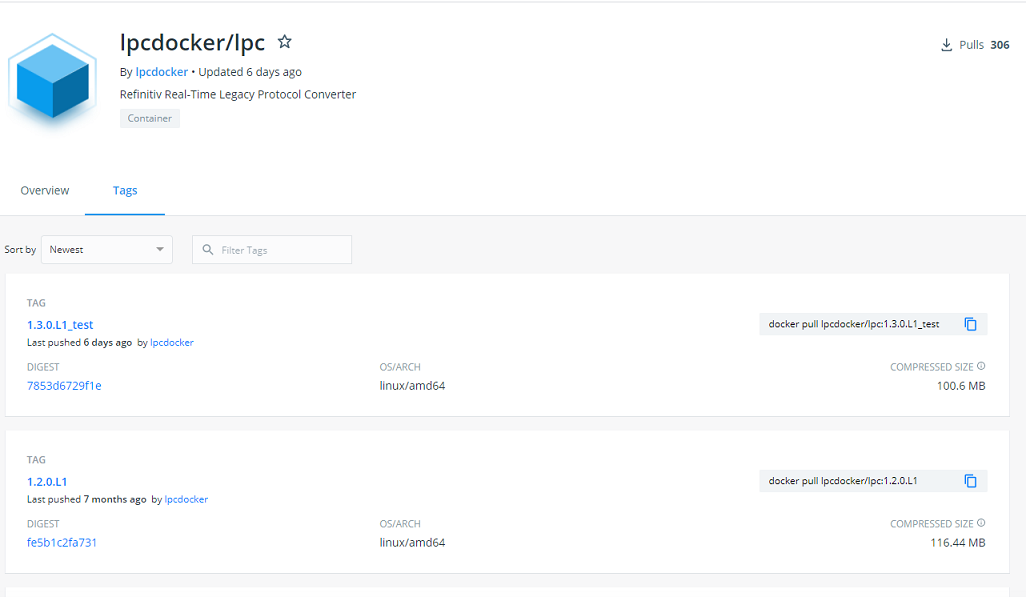
The tag represents the version of LPC. You can pull any versions of LPC. You can verify all available LPC versions in the docker hub.
2. Preparing directories for config, log, and debug files
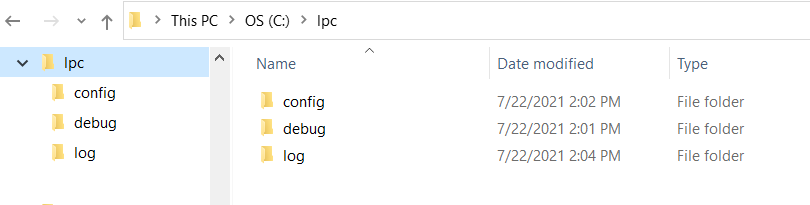
The lpcdocker/lpc docker container use docker volumes for maintaining the LPC configuration, debug, and log files. Therefore, the following directories should be created on the host machine to maintain those files.
- c:\lpc\config
- c:\lpc\log
- c:\lpc\debug
3. Running the container
To run the lpc container, we need to map the /refinitiv_data directory in the container to the c:\lpc directory on the host machine. The -v option is used to map the directory.
The following command can be used to run the container.
The -p options are used to map TCP/8101 and TCP/14002 ports of the container to the host machine.
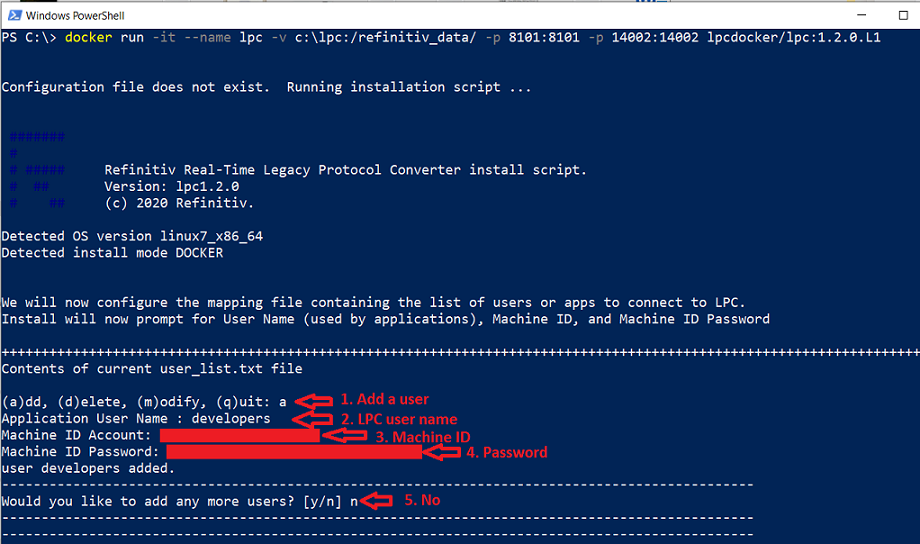
If you run it for the first time or the c:\lpc\config directory is empty, the LPC contain will run the installation script to create LPC configuration files. The script will ask for the following information.
3.1 Credentials to connect to the Refinitiv Real-Time Optimized (RTO)
You need to add an application user name with the associated RTO credentials. The application user name will be used by the client applications to connect to the LPC.
3.2 AWS Service Region and Proxy Setting
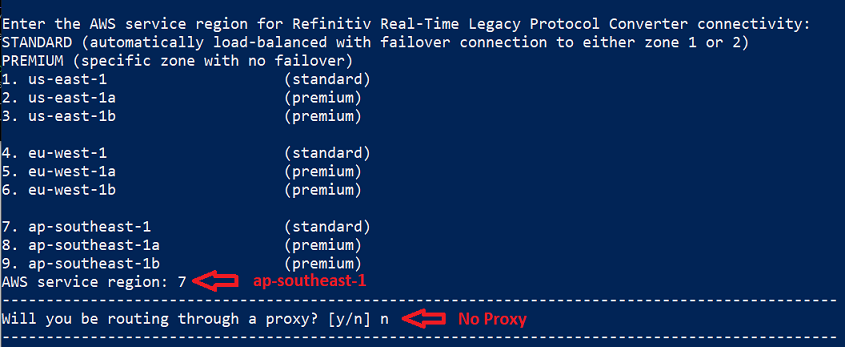
Next, you need to select the closest AWS service region of the connected Refinitiv Real-Time Optimized and configure the proxy service if required.
3.3 Connectivity and Dictionary Download
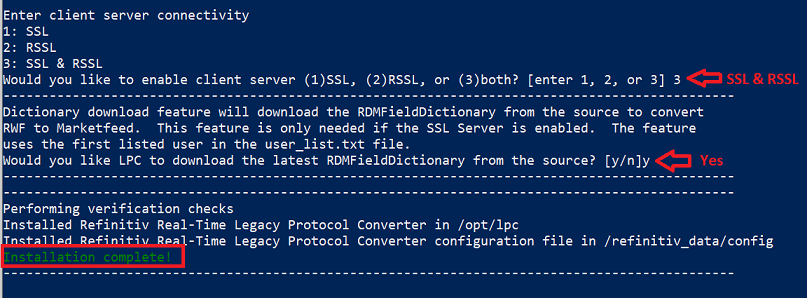
Then, you need to choose the connectivity that LPC will support. In this case, both SSL and RSSL connections are enabled on LPC. It also downloads the dictionary from the Refinitiv Real-Time Optimized.
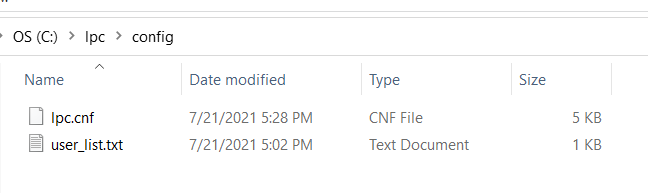
Finally, LPC is properly configured and run. You can verify that the configuration files are created in the c:\lpc\config directory.
You can verify the lpc.log file created in the C:\lpc\log directory. If LPC is ready for connections, you will see the following logs.
If it failed to start, please also check the lpc.log file in the C:\lpc\log directory.
Test the connection
The LPC supports both RSSL and SSL connections so we can use both Refinitiv Real-Time SDKs (C/C++ and Java), RFA 8.x, RFA 7.x, and SFC applications to connect to the LPC.
For Refinitiv Real-Time SDKs, RFA 8.x, and RFA 7.x (OMM interfaces) applications to connect to the LPC, modify the application code or the configurations to connect to 127.0.0.1:14002, and subscribe to ELEKTRON_DD service.
For RFA 7.x (Market Data Interfaces), and SFC applications to connect to the LPC, modify the application code or the configurations to connect to 127.0.0.1:8101 and subscribe to ELEKTRON_DD service.
Otherwise, you can run the refinitivapis/realtimesdk_c docker container to connect to the LPC. Run the following command to connect to the LPC docker container running on the same host machine. The name of the LPC docker container is lpc.
"developers" is an application user name configured in the LPC. It uses the --link option to link this realtimec container to the container named "lpc" and also set an alias to "lpc". After linking, the application in the container can use this alias to create a network connection to the linked Docker container.
The output is:
Access Bash Shell
When the container is running, the "docker exec" command can be used to access the bash shell of the running container.
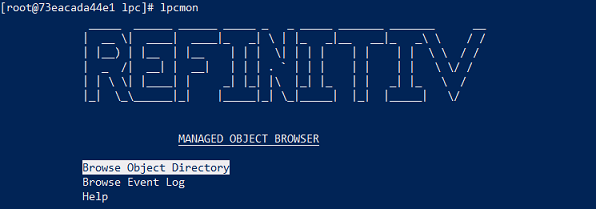
Within the bash shell, the lpcmon can be run to display configuration and statistics information of the Refinitiv Real-Time Legacy Protocol Converter application.
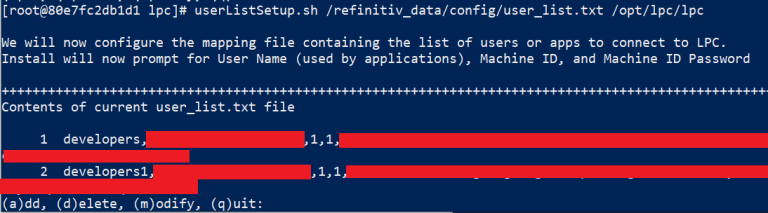
You can also run the userListSetup.sh script to manage user credentials in the user_list.txt file
Cleanup
The “docker stop <container name>” command can be used to stop the running container.
To start it, the “docker start <container name>” command can be used.
To remove the container, the “docker rm -f <container name>” command can be used.
After removing the container, the “docker run” command can be used again to run the container.
References
- Hub.docker.com. 2021. Docker Hub. [online] Available at: <https://hub.docker.com/r/lpcdocker/lpc> [Accessed 22 July 2021].
- Docker Documentation. 2021. docker run. [online] Available at: <https://docs.docker.com/engine/reference/commandline/run/> [Accessed 22 July 2021].
- 2021. Refinitiv Real-Time Legacy Protocol Converter Version 1.2 Installation Guide 1.2. [ebook] Refinitiv, pp.10-21. Available at: <https://my.refinitiv.com/> [Accessed 22 July 2021].
- Phuriphanvichai, J., 2017. Deploy and Run Refinitiv Real-Time SDK in Docker | Refinitiv Developers. [online] Developers.refinitiv.com. Available at: <https://developers.refinitiv.com/en/article-catalog/article/deploy-and-run-elektron-sdk-docker> [Accessed 22 July 2021].
- Phuriphanvichai, J., 2020. Introduction to the refinitivapis/realtimesdk_c Docker Image | Refinitiv Developers. [online] Developers.refinitiv.com. Available at: <https://developers.refinitiv.com/en/article-catalog/article/introduction-to-the-refinitivapis-elektronsdkc-docker-image> [Accessed 22 July 2021].
Related Articles
-
Configuring adspop docker to connect to Real-Time Optimized
-
Deploy and Run Refinitiv Real-Time SDK in Docker
-
How to deploy and run Real-Time Java Application with Maven in Docker
-
Docker Tips for Application Testing
-
Migrating an application from Elektron Connect to Refinitiv Real-Time Optimized
-
Migrating from Elektron Connect to ERT in Cloud

