
Author

GitHub Copilot is an AI-powered coding assistant designed to help developers write code faster and more efficiently. It works directly within popular editors like Visual Studio Code, GitHub Codespaces, and JetBrains IDEs, offering real‑time suggestions for entire lines, functions, documentation, and even test cases. Trained on a wide range of publicly available code, Copilot understands natural language prompts, allowing you to describe what you want and have it generate the corresponding code. It can also help explore unfamiliar libraries, reduce repetitive tasks, and provide guidance as you work, effectively acting as an intelligent pair‑programming partner that enhances productivity and supports developers of all skill levels.
Prerequisites
To follow the methods in the article, you will need:
- LSEG Workspace Desktop Application
- Access to GitHub Copilot
- Python 3 environment
- Jupyter Notebook or JupyterLab Environment
The =@RDP.Data Workspace Excel Function
The =@RDP.Data function in LSEG Workspace Excel allows users to retrieve market, reference, and pricing information from the LSEG Workspace Platform directly into their spreadsheets. By specifying inputs such as the instrument identifier, data fields, and optional parameters, the function returns the requested financial content in a structured format. This makes it useful for analysts, traders, and developers who need integrated access to financial data within Excel models. The function helps streamline workflows by reducing manual data entry, improving consistency, and supporting faster analysis within familiar spreadsheet environments.
Python Code Conversion
Each =@RDP.Data function can be manually translated into its equivalent Python code using the ld.get_data method from the LSEG Data Library for Python. This is done by mapping the Excel arguments—such as instruments, fields, and optional parameters—to the corresponding universe, fields, and parameters arguments in ld.get_data. The full process is described in the How to Convert the =@RDP.Data Excel Function into Code Using the LSEG Data Library for Python article. Developers can use these steps to build an application that converts a LSEG Workspace Excel file containing =@RDP.Data formulas into a Jupyter Notebook containing equivalent Python code that calls ld.get_data to retrieve the same data.
Fortunately, we live in the AI era, which enables us to use tools such as GitHub Copilot to help develop this solution by referring to the methods described in the How to Convert the =@RDP.Data Excel Function into Code Using the LSEG Data Library for Python article. This can be started by using the following prompt with GitHub Copilot on Visual Studio Code.
However, the code generated by AI is varied and may not work correctly. You need to ask AI to review or fix the code.
Sample Generated Code
The sample Python code is available on GitHub and uses the openpyxl module to work with Excel files. You can also find the full prompt used to generate this code on GitHub, allowing you to customize it to your needs.
Run the following command to install the required module.
| pip install -r requirements.txt |
It accepts the following arguments.
Argument Name |
Description |
--workbook |
Path to an Excel workbook (.xlsx) containing @RDP.Data or @TR formulas
|
--output |
Path to output notebook (optional, defaults to {workbook_file}_rdp_data_conversions.ipynb)
|
--sheet |
Worksheet name(s) to process (optional, repeat to include multiple sheets, defaults to all sheets) |
For example:
Specify the --workbook argument.
This command will load the Example1.xlsx file and check all worksheets to convert the @RDP.Data and @TR formulas to the Example1_rdp_data_conversions.ipynb file.
| python rdp_data_converter.py --workbook Example1.xlsx |
Specify the --workbook, --output, and --sheet arguments.
This command will load the Example1.xlsx file and convert the @RDP.Data and @TR formulas in the "TR Samples" and "RDP.Data Samples" worksheets to the Example1.ipynb file.
| python rdp_data_converter.py --workbook Example1.xlsx --output Example1.ipynb --sheet "TR Samples" --sheet "RDP.Data Samples" |
Note: The code was generated by GitHub Copilot and is provided “AS IS”, without any support or warranty.
Output
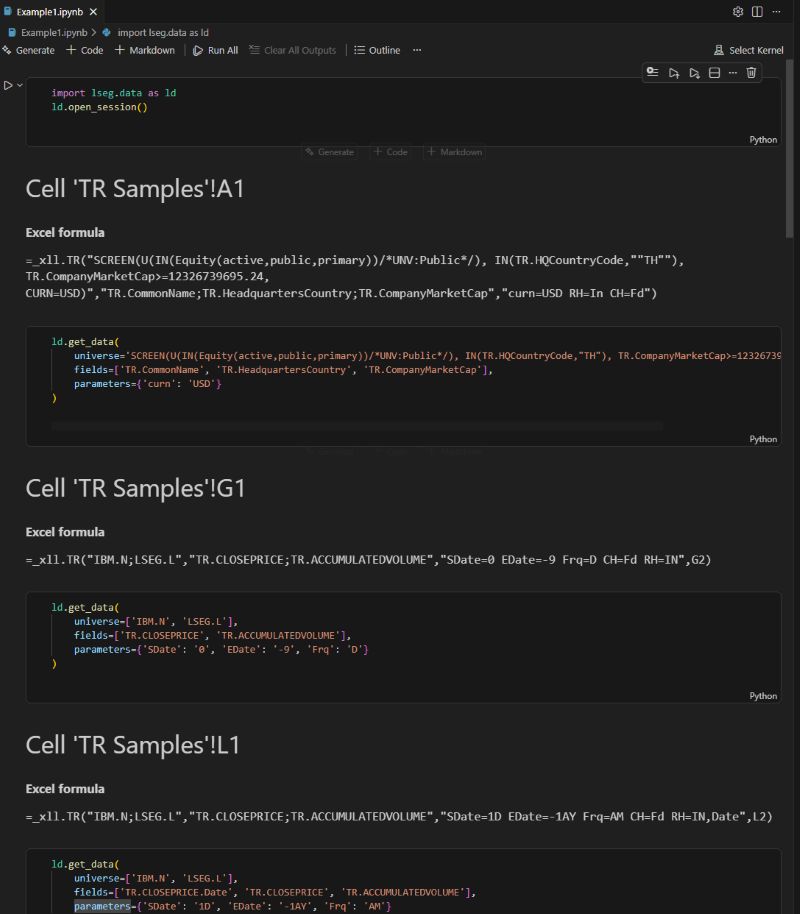
The generated Jupyter Notebook begins with a code cell that imports the lseg.data library and opens a session. Each =@RDP.Data and =@TR function found in the Excel file is converted into a markdown cell showing the original Excel formula, followed by a code cell containing its equivalent Python call.
Note: The LSEG Data Library for Python is required to run the Jupyter Notebook f
Summary
This article explains how GitHub Copilot can assist developers in converting LSEG Workspace Excel formulas—particularly =@RDP.Data and =@TR—into equivalent Python code inside a Jupyter Notebook. It outlines how the Excel function retrieves financial market, reference, and pricing data directly into spreadsheets and describes how these formulas can be translated into ld.get_data() calls using the LSEG Data Library for Python. It provides a detailed prompt for generating a converter tool that reads Excel workbooks, identifies the relevant formulas, and produces a notebook containing markdown cells with the original formulas followed by Python cells performing matching data requests. It also notes that AI‑generated code may require review and includes examples of command‑line usage for the tool, along with a description of the resulting notebook structure.
- Register or Log in to applaud this article
- Let the author know how much this article helped you
Get In Touch

Source Code

Related APIs
Related Articles
-
How to Convert the =@RDP.Data Excel Function into Python Using the LSEG Data Library for Python
-
Essential Guide to the Data Libraries - Generations of Python library (EDAPI, RDP, RD, LD)
-
Upgrade from using Eikon Data API to the Data library
-
The Data Library for Python - Quick Reference Guide (Access layer)
-
LSEG's Refinitiv Data Library for Python and its Configuration Process
-
Find Your Right Companies with SCREENER
