

Introduction
Platform Administration is an administrative portal that enables customer administrators to manage applications, service accounts, licenses, and entitlements for LSEG platforms.
A service account is a non-human account used by applications, services, and automated processes to access LSEG APIs and data. Each service account is associated with an application and must be configured with an authentication method before it can be used.
Platform Administration supports two service account authentication methods:
- Client Secret Authentication: Uses a service account ID and generated secret (password).
- JWT Assertion Authentication: Uses public/private key cryptography and signed JSON Web Tokens (JWTs).
This article explains how to create a service account using JWT Assertion Authentication, manage public/private keys, and obtain access tokens for API access.
Note: For the Client Secret Authentication, please refer to the Setting Up Client Secret Authentication for a Service Account article.
Quick Decision Guide
Use Client Secret for simple internal applications, development environments, and scenarios where a shared secret can be securely stored. Use JWT Assertion for production, enterprise, or high-security environments, where asymmetric cryptography provides stronger security, easier key rotation, and better compliance.
In general, Client Secret prioritizes simplicity, while JWT Assertion prioritizes security.
Scenario |
Recommended Approach |
Simple internal service |
Client Secret |
Development environment |
Client Secret |
Short-term prototype |
Client Secret |
Production enterprise system |
JWT Assertion |
Banking / financial APIs |
JWT Assertion |
Service with certificate infrastructure |
JWT Assertion |
Note: This guidance is intended as a recommendation and is not mandatory.
What is JWT Assertion Authentication?
JWT Assertion Authentication is a service account authentication method that uses a Service Account ID and a digitally signed JSON Web Token (JWT) to authenticate an application. Instead of a shared secret, the application signs the JWT using a private key, and the authorization server validates the signature using the corresponding registered public key.
When a service account is created in Platform Administration with the JWT Assertion authentication method, the platform uses a public/private key pair rather than a shared secret. The application signs a JSON Web Token (JWT) using its private key, while the platform validates the signature using the corresponding public key. The application uses the Service Account ID and signed JWT to authenticate with the LSEG authorization server and request an access token.
Prerequisites
Before creating a service account with the JWT Assertion authentication, ensure that:
- You have access to the Platform Administration application.
- An application has already been created under the appropriate location account.
- You have sufficient permissions to manage applications and service accounts.
- A Public/Private key pair in PEM or JWK format
Generating Public/Private Key Pair
The service account supports public/private key pair in either PEM or JWK format. PEM (Privacy-Enhanced Mail) and JWK (JSON Web Key) are two different representations of the same cryptographic key pair, which consists of a private key and a public key. The private key is kept secret and is used to sign JWTs or decrypt data, while the corresponding public key can be shared to verify signatures or encrypt data.
PEM stores keys as Base64-encoded text files with headers such as -----BEGIN PRIVATE KEY-----, making it a common format for OpenSSL, TLS certificates, and local key storage.
JWK stores the same key information in a JSON-based structure, making it easier to exchange keys through APIs and OAuth/OpenID Connect systems.
In practice, an application uses a private key, stored in either PEM or JWK format, to sign a JWT. The receiving server then uses the corresponding public key to verify that the JWT was created by the trusted owner of the private key.
PEM Format
The following OpenSSL commands can be used to generate a public/private key pair in PEM format.
This first command uses OpenSSL to generate a new 2048-bit RSA private key and save it to a file named private.pem. The second command extracts the corresponding public key from the private key stored in private.pem and saves it in PEM format to a file named public.pem.
The generated key pair is stored in the private.pem and public.pem files. The private.pem file contains the private key and must be kept secure, while the public.pem file contains the corresponding public key and can be shared with systems that need to verify signatures created using the private key.
Private PEM file (private.pem)
Public PEM file (public.pem)
JWK Format
There are several tools available for generating JWK public/private key pairs. In this example, the online tool mkjwk.org is used to generate a JWK key pair.
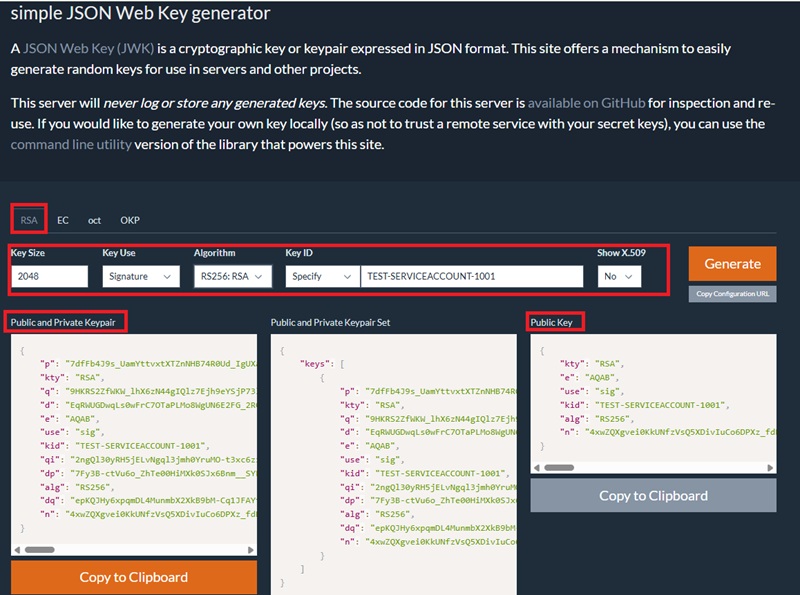
The following RSA settings can be used:
- Key Size: 2048
- Key Use: Signature
- Algorithm: RS256:RSA
- Key ID: Specify (Specify a unique Key ID)
- Show X.509: No
Then, click on the Generate button.
The generated key pair consists of a private key and a corresponding public key in JWK format. The private key should be kept secure and used only by the application to sign JWTs, while the public key can be shared with other systems to verify the signatures generated by the private key.
JWK Public Key
JWK Private Key
Creating a Service Account with JWT Assertion Authentication
This section explains how to create and configure a service account for JWT Assertion Authentication in Platform Administration. It covers selecting or creating and certifying an application, creating the service account, choosing the access token and authentication settings, registering public keys in JWK/JWKS or PEM format, and assigning the licences required for LSEG API or Real-Time Optimized access.
Step 1: Navigate to Application Management
1. Sign in to the Platform Administration application.
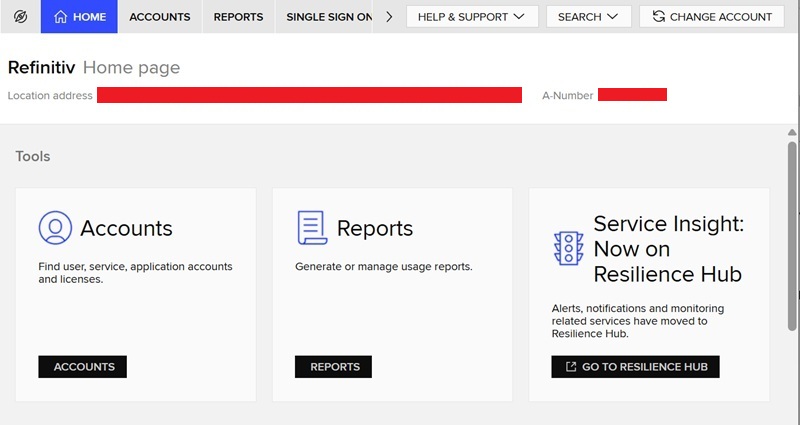
2. Select the appropriate Location Account.
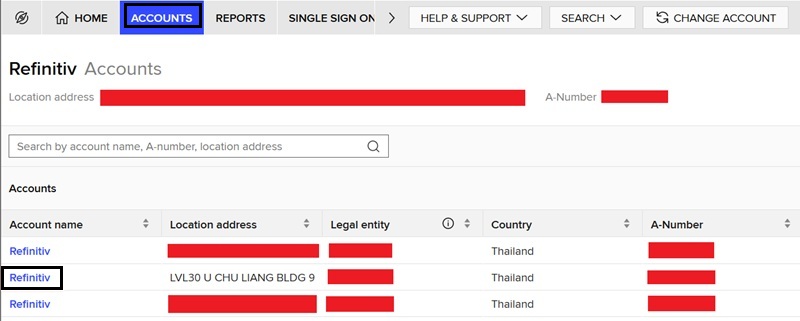
3. Open Application Management.
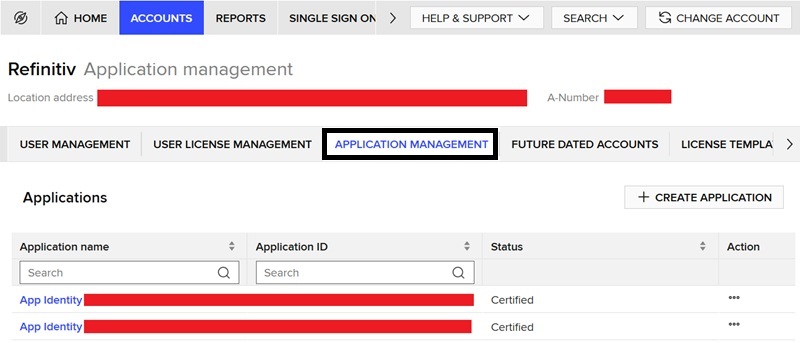
4. Create a new application or select the target application
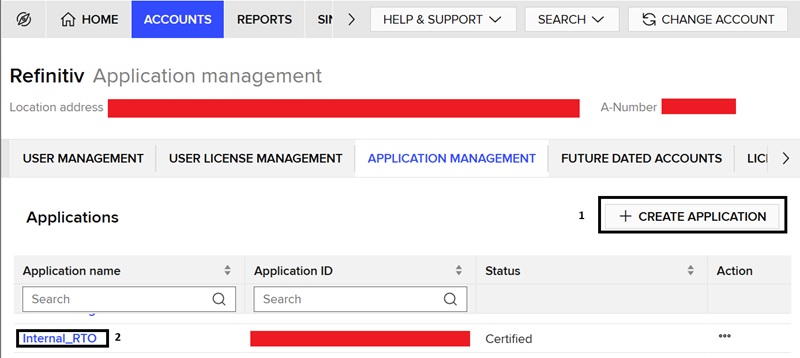
You can either (1) create a new application, or (2) select an existing application.
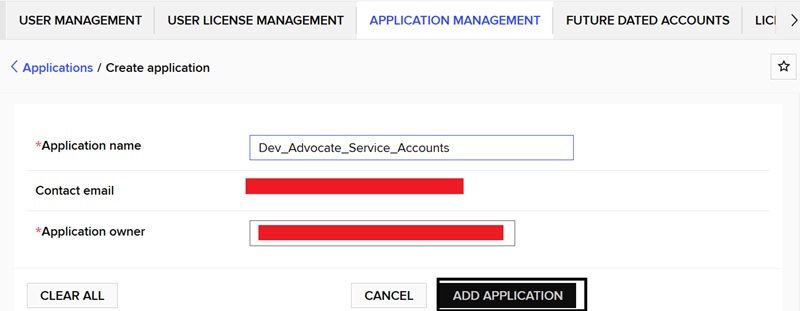
To create a new application, click on the CREATE APPLICATION button, enter an application name, and click on the ADD APPLICATION button.
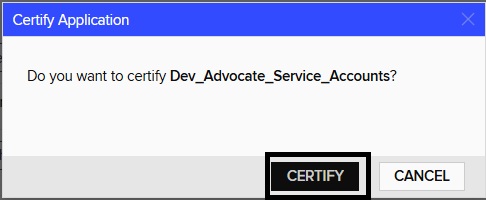
Then, click on the CERTIFY button to certify the application.
The new application will be created.
Step 2: Create a New Service Account
1. Open the application details page.
The application details page will be displayed when the application is created or selected.
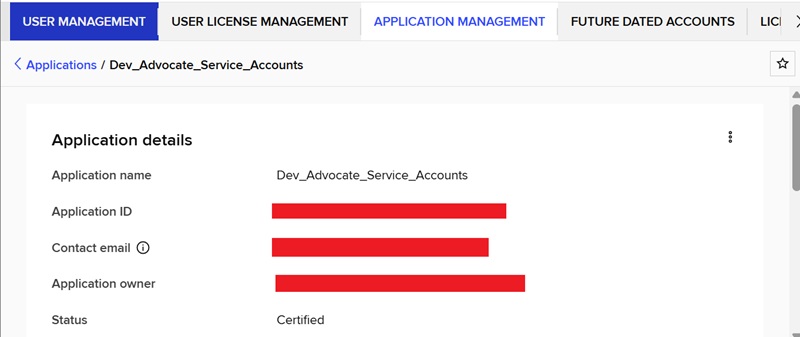
Scroll down to the Service accounts section.
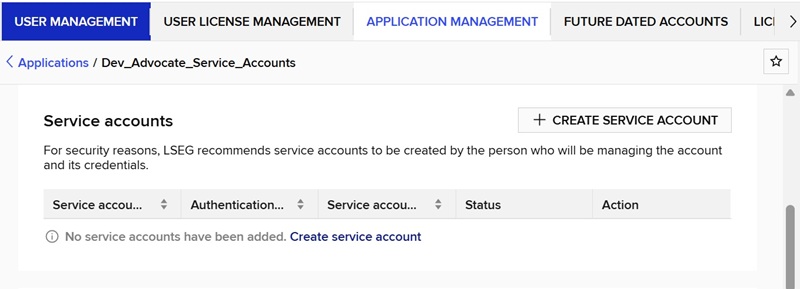
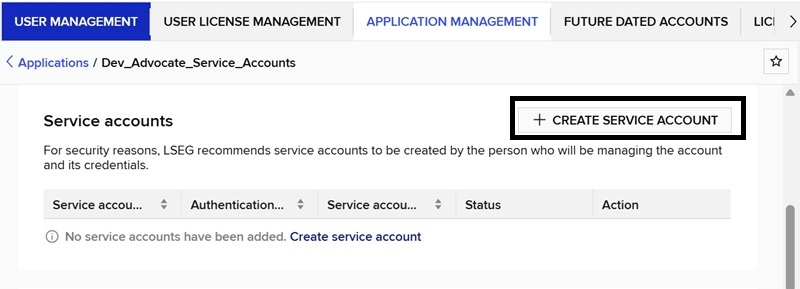
2. Create New Service Account.
Click on the CREATE SERVICE ACCOUNT button to create a new service account.
The service account creation form allows you to enter the account name and select the authentication method.
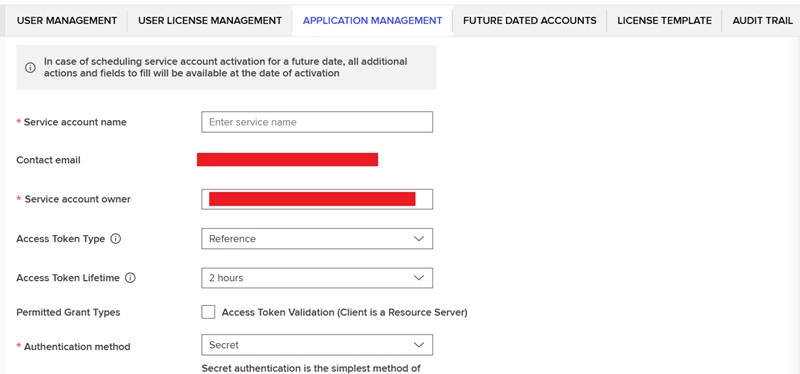
Step 3: Select the JWT Assertion Authentication Method
On the service account form:
1. Enter a meaningful service account name.
2. Select the Access Token Type (Reference or JWT). For the Real-Time Optimized connection, the Access Token type must be Reference.
3. Select JWT Assertion as the authentication method.
4. Select JWKS in the JWT assert type and review the entered information.
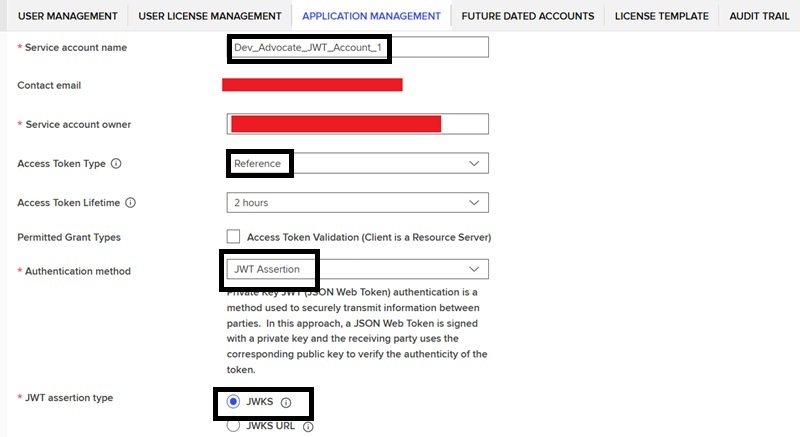
Note: A JWK represents a single key, while a JWKS (JSON Web Key Set) is a JSON document containing one or more JWKs within a "keys" array.
5. Choose the Key upload method (JWK or PEM)
JWK Format
Select Add JWKS manually, then enter or paste the public JWK key generated above into the JWKS section. The public key must be included in the JSON "keys" array.
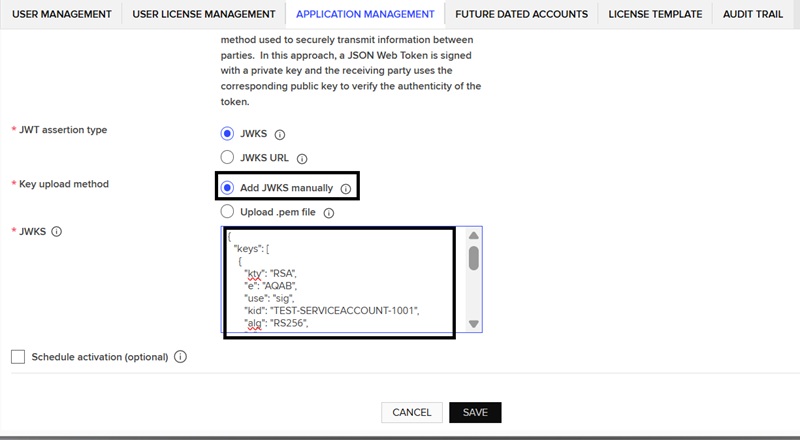
Note: The JSON "keys" array can contain multiple JWK public keys, allowing more than one public key to be configured for the service account. Uploading multiple public keys enables seamless key rotation. Applications can begin signing JWTs with a new private key while the existing key remains active during the transition period.
PEM Format
Select Upload .pem file, enter a unique Key ID, and then upload the public PEM file (public.pem) generated above.
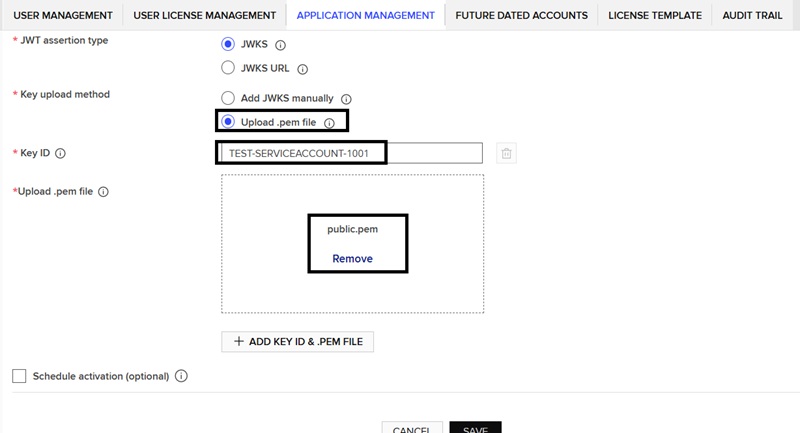
Note: Users can upload multiple public PEM files, allowing more than one public key to be associated with the service account.
6. Click on the Save button
Once the service account has been created, the Service Account Details page will be displayed, where you can review and manage the service account's configuration and settings.
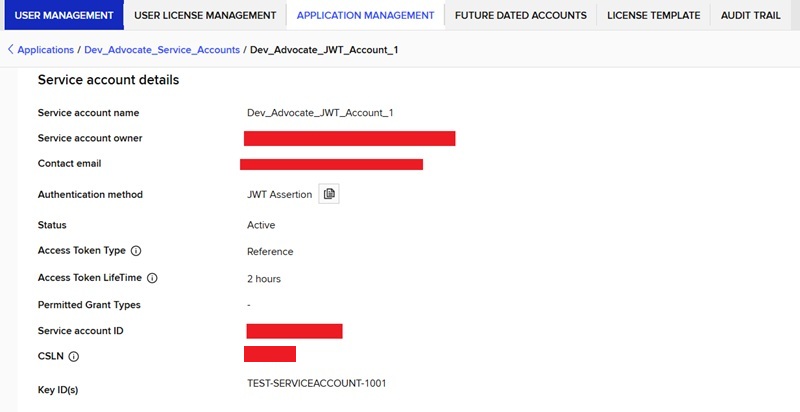
The Platform Administration guide describes:
| Private Key JWT (JSON Web Token) authentication is a method used to securely transmit information between parties. In this approach, a JSON Web Token is signed with a private key and the receiving party uses the corresponding public key to verify the authenticity of the token. |
Step 4: Assigned Licenses
On the service account details page, scroll down to the Assigned licenses section and click on the MANAGE LICENSES button.
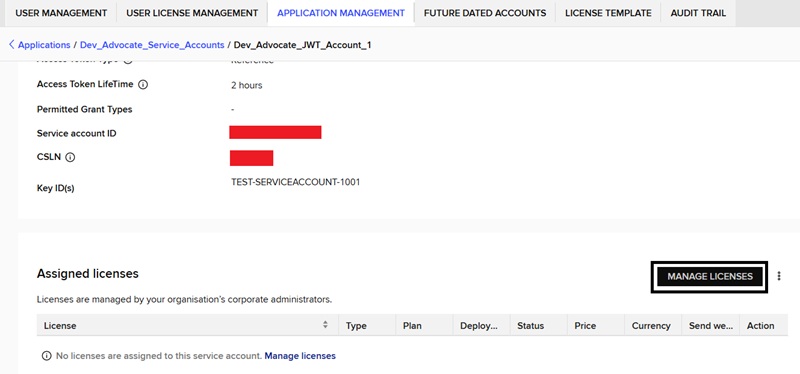
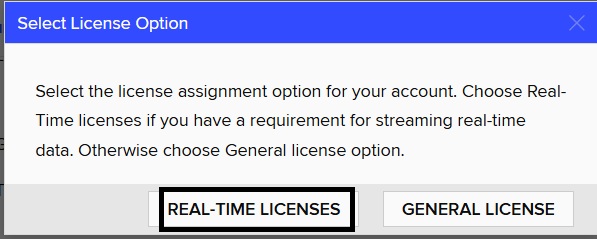
1. Select the License Option
Choose between the REAL-TIME LICENSES or GENERAL LICENSES. In this article, the REAL-TIME LICENSES is selected.
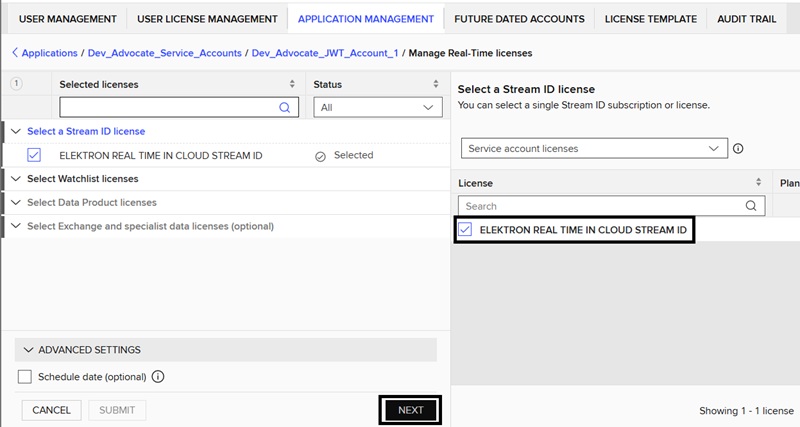
2. Select a Stream ID license
Select the ELEKTRON REAL TIME IN CLOUD STREAM ID license and then click on the NEXT button.
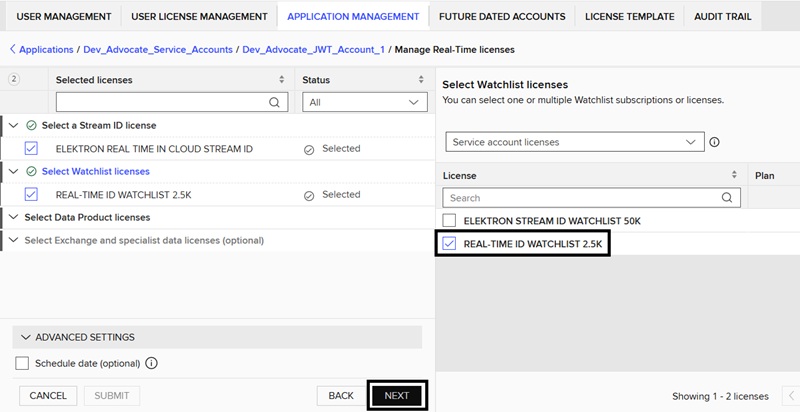
3. Select Watchlist licenses
Select the number of item watchlist for this service account and then click on the NEXT button.
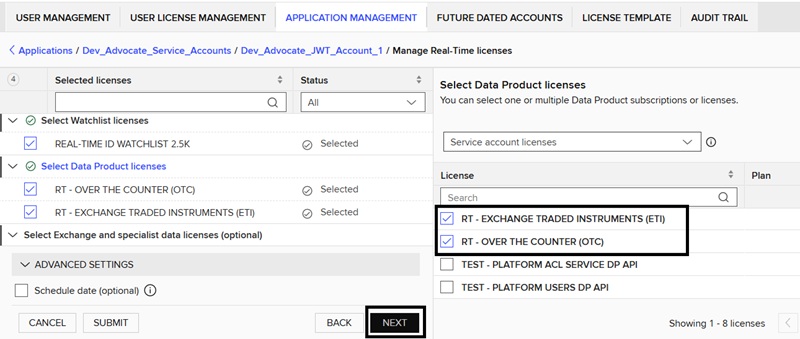
4. Select Data Product licenses
Select the required data product licenses and then click on the NEXT button.
5. Select Exchange and specialist data licenses (optional)
Select the required exchange and specialist data licenses and then click on the SUBMIT button.
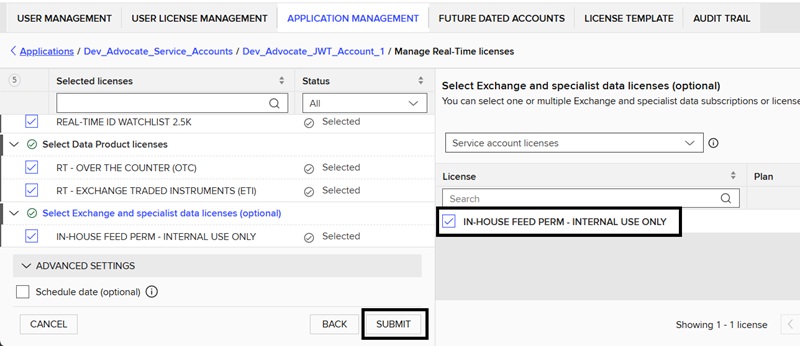
The service account details page will be displayed with the assigned licenses.
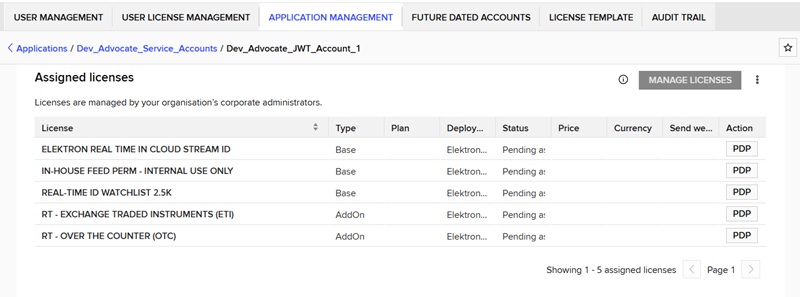
Now, this service account and the signed JWT can be used to retrieve an access token from the LSEG Data Platform.
Managing a Service Account
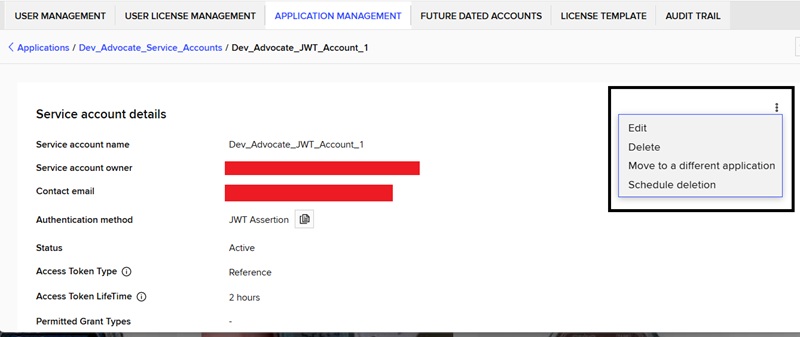
On the Service Account Details page, users can edit or delete the service account. Additional public keys in either JWK or PEM format can be added to the account as needed.
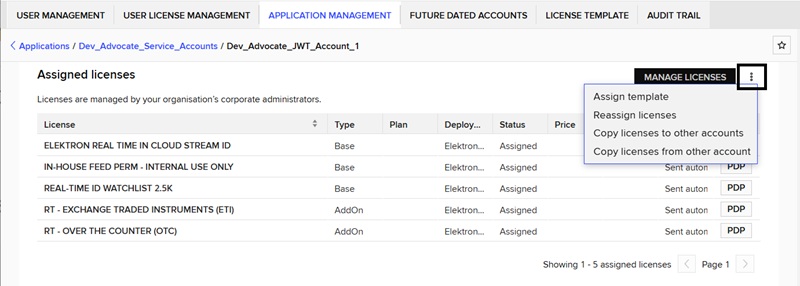
Moreover, the assigned licenses can also be modified.
Test the JWT Assertion Authentication (A signed JWT Token)
To test the JWT assertion authentication method, a signed JWT is required. A signed JWT consists of three components: the Header, the Payload, and a private key (in either PEM or JWK format).
The private key is used to digitally sign the JWT, allowing the authentication server to verify that the token was issued by the owner of the corresponding public key registered with the service account.
1. Header
The Header contains metadata about the token, such as the signing algorithm and key identifier.
Note: kid is the unique Key ID set in the account.
2. Payload
The Payload contains the claims and authentication information.
Claim |
Required |
Description |
iss |
Yes |
Issuer: Service Account ID |
sub |
Yes |
Subject: Service Account ID |
aud |
Yes |
Audience: OAuth token endpoint |
iat |
Yes |
Issued at: Current Unix epoch time |
exp |
Yes |
Expiration time: Current Unix epoch time plus 60 to 100 seconds |
Note: The current Unix epoch time in seconds can be retrieved from this https://www.epochconverter.com/ website.
3. Private Key
The JWT is signed using a private key in either PEM or JWK format. This digital signature ensures the integrity and authenticity of the token, allowing the authentication server to verify that the JWT was issued by the owner of the corresponding public key associated with the service account.
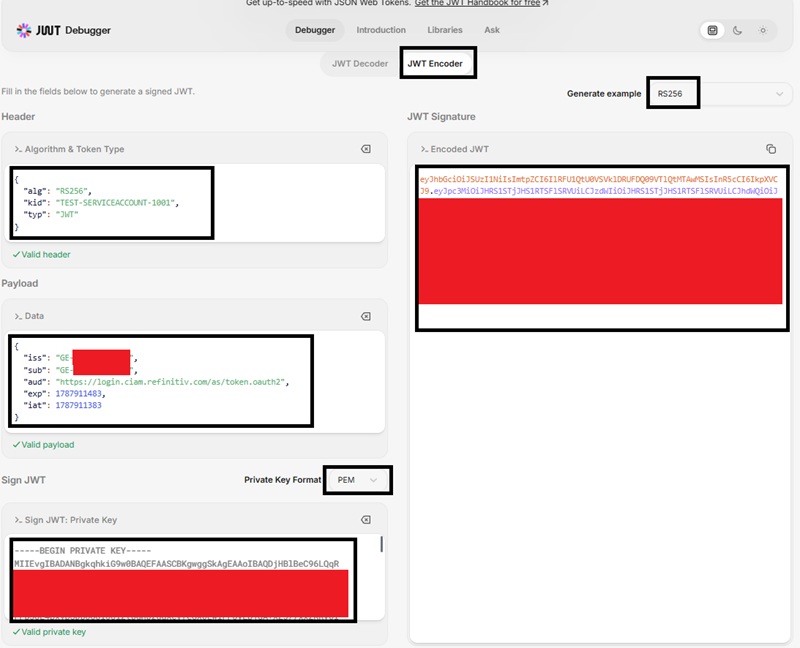
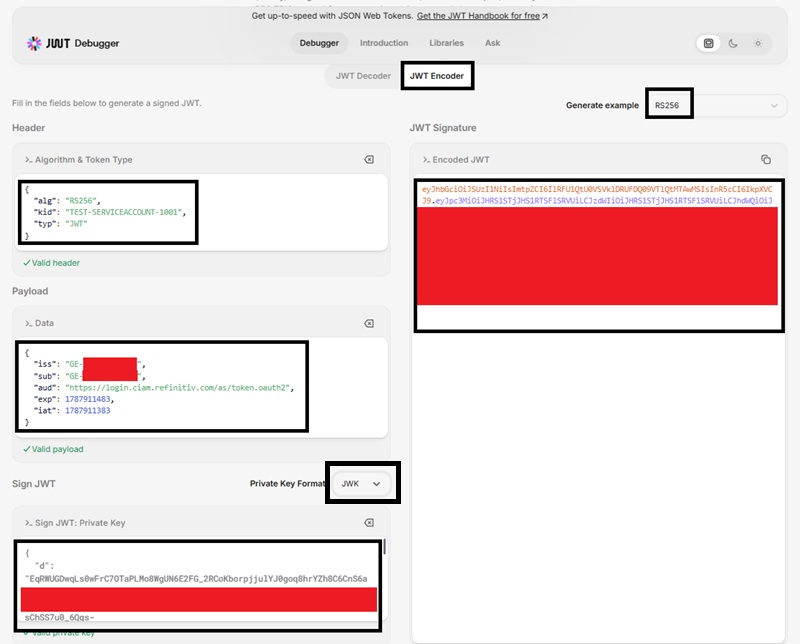
How to use jwt.io to create a JWT signed token
The online https://jwt.io website can be used to create a JWT signed token.
1. Access the jwt.io website
2. Select JWT Encoder
3. Select RS256 in the Generate example
4. Enter the Header
5. Enter the Payload
6. In Sign JWT, choose the PEM or JWK in the Private Key Format and enter the PEM or JWK private key
7. Copy and save the generated Signed Encoded JWT displayed in the JWT Signature section. This encoded JWT will be used to authenticate and connect to the LSEG Data Platform.
PEM
The following image demonstrates how to use a PEM-formatted private key to generate a JWT-signed token.
JWK
The following image demonstrates how to use a JWK-formatted private key to generate a JWT-signed token.
Note: The jwt.io tool is useful for testing and troubleshooting. Production applications should generate and sign JWTs programmatically and should not paste production private keys into online tools.
Authentication Flow Summary
At a high level, the application signs a JWT using its private key, and the LSEG authentication service verifies the signature using the registered public key before issuing an access token. The process is summarized below.
1. Generate public/private or JWK key pair.
2. Register the public key in Platform Administration.
3. Keep the private key secure.
4. Generate a signed JWT.
5. Submit the JWT as client_assertion.
6. Receive an OAuth access token.
7. Use the access token to access APIs.
Testing the account
The service account and the signed JWT token can be tested by sending a HTTP POST request message to the authentication service endpoint on the LSEG Data Platform.
Postman
1. Create a HTTP POST request message to the https://api.refinitiv.com/auth/oauth2/v2/token endpoint.
2. Set the Content-Type in the Body to x-www-form-urlencoded
3. Set the following keys and values in the body
Key |
Value |
grant_type |
client_credentials |
client_id |
<Service Account ID> |
client_assertion |
<Signed JWT> |
client_assertion_type |
urn:ietf:params:oauth:client-assertion-type:jwt-bearer |
scope |
trapi |
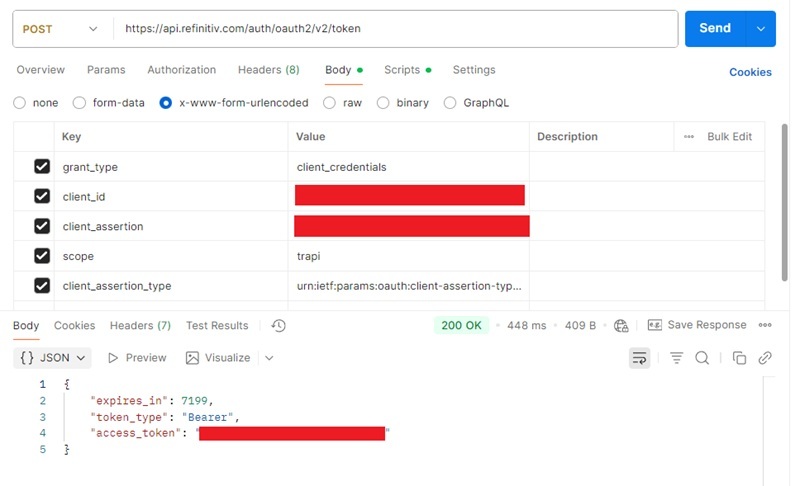
If the credentials are correct, the HTTP response status will be 200 OK, and the response body will contain an access token.
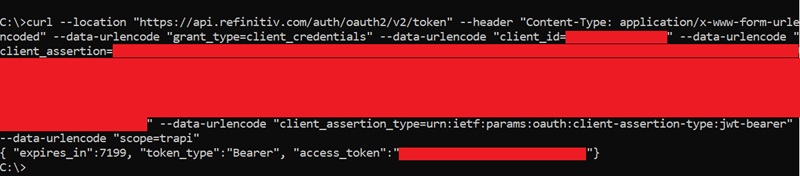
Curl
The following Curl command can also be used to test the account.
Real-Time SDKs and WebSocket APIs
The examples provided in the Real-Time SDKs (C++, Java, and C#) and WebSocket APIs can also be used to test a client ID with JWT Assertion authentication to obtain an access token and connect to Real-Time Optimized. These examples require a file containing a private JWK key pair rather than a signed JWT.
Python WebSocket API
Run the market_price_rto_jwt_auth.py example with the following parameters.
Real-Time SDKs: EMA
Run the Consumer Example #113 (Cons113) with the following parameters.
Security Best Practices
The following best practices are recommended when using JWT Assertion Authentication:
- Never upload or share a private key.
- Store private keys in a secure key vault or secrets manager.
- Restrict access using least-privilege principles.
- Rotate keys periodically.
- Immediately replace compromised keys.
- Prefer production-grade key management systems over local file storage.
What are the differences between the Reference and JWT access token types?
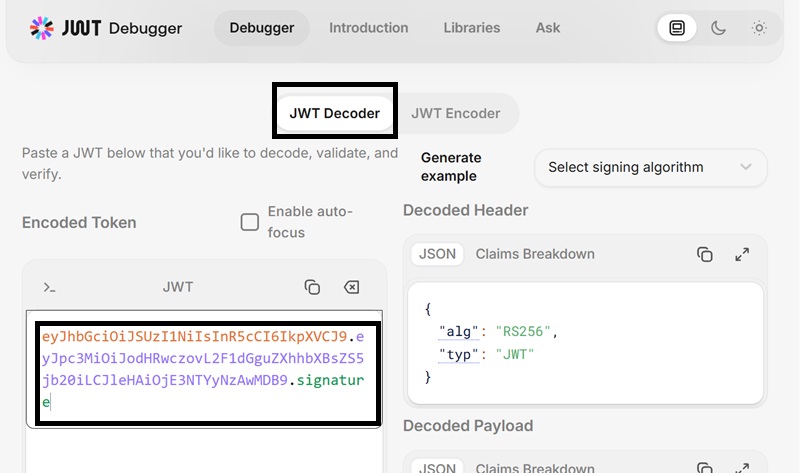
JWT Assertion authentication supports either Reference (Not self-contained) or JWT (self-contained) access token type. In the context of OAuth 2.0 access tokens, self-contained and not self-contained refer to whether the access token itself contains all the information needed to validate the user/client and authorization claims.
A reference token is typically an opaque string with no meaningful information embedded in it. For example:
A JWT (JSON Web Token) is a self-contained token that includes the authorization information within the token itself. For example:
Users can use the online jwt.io tool to decode a JWT.
Recommended Usage
|
Troubleshooting
1. "Authentication failed (1026, Request for token validation failed:"The authentication server did not contain \"active\" in response."
The application will receive this error in the login response when connecting to the Real-Time Optimized server. This issue may occur if the Access Token Type configured for the service account is set to JWT. To connect to Real-Time Optimized, the Access Token Type must be set to Reference.
Solution:
Access the Platform Administrator website and change the service account's Access Token Type from JWT to Reference.
2. "Login Rejected. Watchlist size of 2500 for 'WS JSON2' connection is outside of range [20001,50000] supported for this ADS fanout tier for this type of connection."
The application will receive this error in the login response when connecting to the Real-Time Optimized server. This issue may occur if the selected watchlist license does not match the connected Real-Time Optimized server. There are three tiers of Real-Time Optimized servers, and the server tier can be identified by the suffix in the server name.
Server Tier |
Server Name Suffix |
Watchlist Size |
Small |
…-sm |
1 - 3000 |
Medium |
…-med |
3001 - 20000 |
Large |
…-lrg |
20001 – 50000 |
Solution:
Verify that the watchlist license assigned to the account matches the tier of the Real-Time Optimized server being used. The server tier can be determined from the suffix of the server name. Adjust the configuration accordingly and reconnect to the server.
3. "Invalid JWT token"
This error is returned when the application requests an access token from the LSEG Data Platform endpoint. Typically, it indicates that the JWT token provided in the client_assertion parameter is invalid.
Solution:
You can use the https://jwt.io tool to decode the token and verify its header and payload. For example, ensure that the iat (issued at) claim contains the current Unix epoch time in seconds. You should also verify that all required claims are present and that their values are valid.
4. "Client not found in client database for JWT's sub claim value."
This error is returned when the application requests an access token from the LSEG Data Platform endpoint. It indicates that the value specified in the JWT token's sub (subject) claim does not match any registered client in the LSEG Data Platform client database.
Solution:
Verify that the sub claim contains the correct client ID and that the client has been properly configured for JWT Assertion authentication. You can use https://jwt.io to decode the token and confirm that the value of the sub claim matches the registered client ID exactly. Also, ensure that the JWT token is signed using the correct private key associated with the client.
Summary
This article explains how to configure JWT Assertion Authentication for a service account in Platform Administration and use it to access LSEG APIs and Real-Time Optimized services. It covers the complete process of creating a service account, generating and uploading public/private key pairs in PEM or JWK format, assigning the required licenses, and generating a signed JWT for authentication.
The guide also demonstrates how to obtain an access token using the service account and signed JWT, including examples using Postman, cURL, Real-Time SDKs, and WebSocket APIs. For Real-Time SDKs and WebSocket examples, a file containing a private JWK key pair can be used to obtain an access token and connect to Real-Time Optimized.
In addition, the article explains the difference between Reference and JWT access token types, noting that Reference tokens are required when connecting to Real-Time Optimized. It concludes with troubleshooting guidance for common JWT authentication and Real-Time Optimized connection issues, such as invalid JWTs, incorrect service account configuration, and watchlist license mismatches.
References
1. LSEG. Platform Administration User Guide. LSEG Platform Administration. Referenced for service account management, application management, authentication methods, JWT Assertion configuration, and license assignment procedures.
2. LSEG. LSEG Data Platform Authentication Service. Available at: https://api.refinitiv.com/auth/oauth2/v2/token. Referenced for OAuth 2.0 token retrieval, JWT Assertion authentication, client assertions, and access token generation.
3. OpenSSL Project. OpenSSL Documentation. Available at: https://www.openssl.org/docs/. Referenced for generating RSA public and private key pairs in PEM format.
4. MKJWK. JSON Web Key (JWK) Generator. Available at: https://mkjwk.org/. Referenced for generating RSA public and private key pairs in JWK format.
5. JWT.IO. JWT Debugger and Token Validation Tool. Available at: https://jwt.io/. Referenced for creating, signing, decoding, validating, and troubleshooting JSON Web Tokens.
6. Epoch Converter. Unix Epoch Time Converter. Available at: https://www.epochconverter.com/. Referenced for obtaining Unix epoch timestamps used in the iat and exp JWT claims.
7. Internet Engineering Task Force (IETF). RFC 6749: The OAuth 2.0 Authorization Framework. Available at: https://datatracker.ietf.org/doc/html/rfc6749. Referenced for OAuth 2.0 client credentials grant concepts and access token flows.
8. Internet Engineering Task Force (IETF). RFC 7519: JSON Web Token (JWT). Available at: https://datatracker.ietf.org/doc/html/rfc7519. Referenced for JWT structure, claims, encoding, signing, and validation.
9. Internet Engineering Task Force (IETF). RFC 7523: JSON Web Token (JWT) Profile for OAuth 2.0 Client Authentication and Authorization Grants. Available at: https://datatracker.ietf.org/doc/html/rfc7523. Referenced for JWT Assertion authentication and client authentication requirements.
10. Internet Engineering Task Force (IETF). RFC 7517: JSON Web Key (JWK). Available at: https://datatracker.ietf.org/doc/html/rfc7517. Referenced for JWK key representation, key metadata, and JSON Web Key Sets (JWKS).
11. Internet Engineering Task Force (IETF). RFC 7515: JSON Web Signature (JWS). Available at: https://datatracker.ietf.org/doc/html/rfc7515. Referenced for JWT digital signature generation and verification.
12. Internet Engineering Task Force (IETF). RFC 7518: JSON Web Algorithms (JWA). Available at: https://datatracker.ietf.org/doc/html/rfc7518. Referenced for cryptographic algorithms used to sign JWTs, including RS256.
13. Internet Engineering Task Force (IETF). RFC 7638: JSON Web Key (JWK) Thumbprint. Available at: https://datatracker.ietf.org/doc/html/rfc7638. Referenced for JWK identification and key management concepts.
14. LSEG. Real-Time SDK Documentation. Available at: https://developers.lseg.com/. Referenced for EMA (C++, Java, and C#) examples using JWT Assertion authentication and Real-Time Optimized connectivity.
15. LSEG. WebSocket API Documentation. Available at: https://developers.lseg.com/. Referenced for WebSocket examples demonstrating JWT Assertion authentication, access token retrieval, and Real-Time Optimized connectivity.
- Register or Log in to applaud this article
- Let the author know how much this article helped you
If you require assistance, please
contact us here

Source Code
Related APIs
Related Articles
Request Free Trial
Call your local sales team
Americas
All countries (toll free): +1 800 427 7570
Brazil: +55 11 47009629
Argentina: +54 11 53546700
Chile: +56 2 24838932
Mexico: +52 55 80005740
Colombia: +57 1 4419404
Europe, Middle East, Africa
Europe: +442045302020
Africa: +27 11 775 3188
Middle East & North Africa: 800035704182
Asia Pacific (Sub-Regional)
Australia & Pacific Islands: +612 8066 2494
China mainland: +86 10 6627 1095
Hong Kong & Macau: +852 3077 5499
India, Bangladesh, Nepal, Maldives & Sri Lanka:
+91 22 6180 7525
Indonesia: +622150960350
Japan: +813 6743 6515
Korea: +822 3478 4303
Malaysia & Brunei: +603 7 724 0502
New Zealand: +64 9913 6203
Philippines: 180 089 094 050 (Globe) or
180 014 410 639 (PLDT)
Singapore and all non-listed ASEAN Countries:
+65 6415 5484
Taiwan: +886 2 7734 4677
Thailand & Laos: +662 844 9576