
Moragodkrit Chumsri
Developer Advocate
Updated: 17 Feb 2025
Using Data Platform API to request ESG data on Jupyter Notebook
INTRODUCTION
Environmental, Social and Governance (ESG) is a set of standards for a company's operations that investors use to evaluate corporate behavior, determine the future financial performance and decide whether it will be beneficial to invest in a company or not. The ESG information from LSEG enables our clients to benchmark, compare and integrate extra-financial information into their investment processes to identify companies with quality management and reduced risk exposure. Please refer to the ESG Learning Section on the Developer Community for more details about the ESG data and its coverage provided by LSEG.
This example will demonstrate how we can retrieve ESG data from the LSEG Data Platform. We will be using Python with Data Platform API to request ESG data on the Jupyter Notebook. The notebook allows the user to create and share documents that contain live code, narrative text, visualizations and we can also plot the graph on the notebook.
The Jupyter Notebook with Python codes will be provided on GitHub.
Pre-requisites:
- Python 3.9 or later version.
- Required Python Packages: getpass, json, requests, pandas, numpy, mathplotlib.
- Jupyter Notebook. You can install Jupyter Notebook on your local machine and then test the example on the machine. The alternate choice is a free Jupiter Notebook on cloud environment such as Azure Notebook provided by Microsoft. You can find more details from this tutorial. If you are not familiar with Jupyter Notebook, the following tutorial created by DataCamp may help.
- Data Platform account with permission to access ESG basic or higher level.
Implementation
There are two main steps for the implementation according to the tutorial.
- Get Access Token from Data Platform Authentication Endpoint.
- Get specific ESG data like the basic score from the REST endpoint.
- Display data and plot a graph.
Get Access Token
Get Data Platform Username and Password
The application will use getpass to get the username and password from the user.
Get access token from authentication endpoint
The application sends HTTP post with required parameters according to the Data Platform tutorial to get the Access Token from the Data Platform server.
If the returned status code from HTTP response is not 200 (OK), we assume that there is an error occurred, therefore, the application will print the status code and the response status message then exit the application. Otherwise, get the Refresh Token and Access Token from the HTTP response message and print it out.
Retrieve ESG score
In this example, we want to retrieve the ESG Score standard. The score standard operation returns all available scores for a company with three years of historical data. Application has to use the following Endpoint to retrieve the data.
There is an alternate option for a professional account to get ESG data with full score and then it returns scores with full history. The user can use the following Endpoint instead.
The application has to send the server certain GET parameters through the requested endpoint/URL. In this case, it has to pass a universe as HTTP get parameters. The universe could be RIC name or ISIN or any other supported value.
The application needs to set a Bearer access token in the Authorization header of the HTTP request message. See below snippet of codes for the API usage to request full ESG score for the RIC MSFT.O.
To process the ESG data, we need to convert the data from the JSON object to a pandas data frame. The application needs to get the data and column name from the JSON object and then reconstruct a new dataframe. The application needs to convert the title from a header to numpy array and convert data array to numpy array as well.
It should return the data like the following sample output.
Plot Graph from ESG Score
To compare specific ESG data between the years, Jupyter Notebook user may use the mathplotlib to plot the graph.
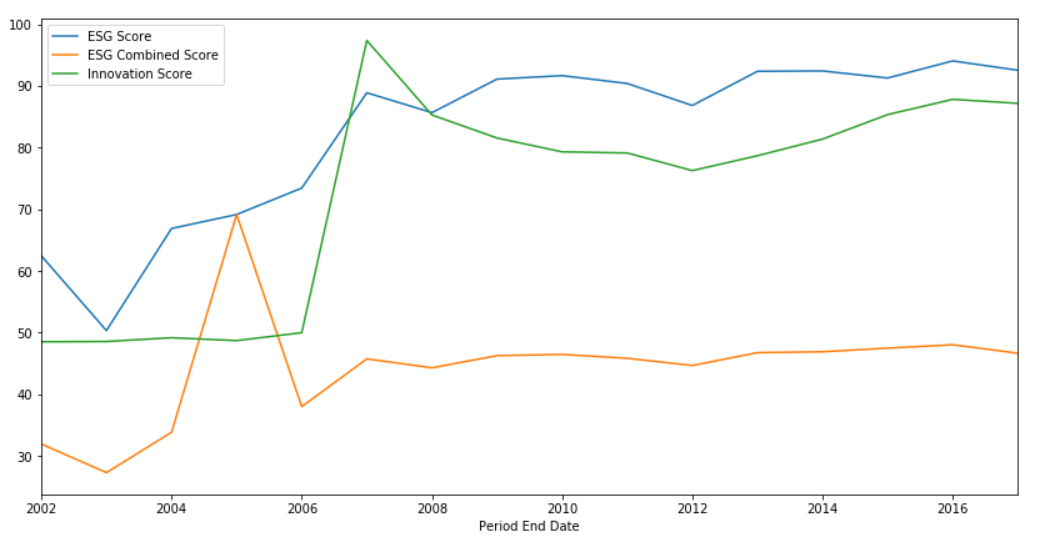
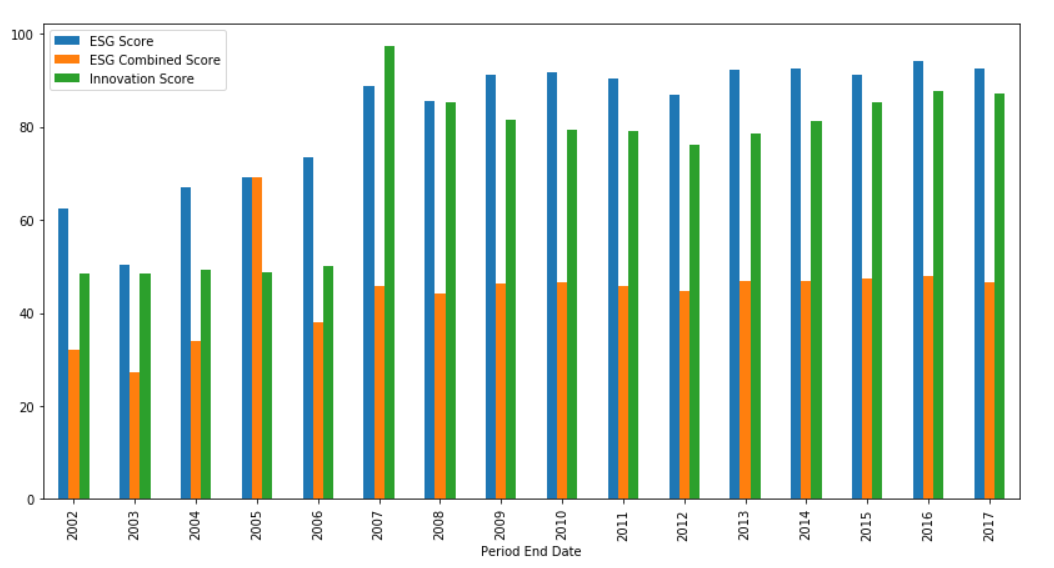
For this example, we want to compare columns "ESG Score", "ESG Combined Score" and "Innovation Score" between the years. I have to create a new data frame from the original data frame df using the following codes.
The data for the X-axis is a Period End Date and the Y-axis is the ESG scores. And we want to display only the year (eg "2017", "2016") therefore we need to reformat the data in "Period End Date" column using below codes. The example also sorting the year ascending.
Note that you can change the column in dataPlot to plot the graph for specific data you want. If you have permission to request only a basic score you might need to change the column accordingly.
Then using a plot method from data frame mathplotlib to plot a line graph which is default kind and then plot it again using a bar graph using the following codes.
It will be displaying the following sample graphs on the Jupyter Notebook.
Compare ESG Score for multiple universes
For the new scenario, I'm interested in comparing the value of a number of Woman Manager and CO2 Emission Total used by a top tech company such as Microsoft, IBM, Facebook, Google/Alphabet, and Amazon.
Based on the details from the Data Platform Swagger page, we can get the data using basic score endpoint and we just need to pass a list of RIC for each company as a universe parameters. Below are a snippet of codes to demonstrate the API usage.
It will show the following result.
Display Company Name
We have an additional requirement to display Company Name rather than using RIC codes. Basically, the data returned by the ESG basic score has only an Instrument name but it does not have a company named. Therefore, I need to create a function for getting the company name from ESG universe data. I found that the ESG universe endpoint can provide the company names that I want. I will use it later when I plot the graph. Anyway, we found that we can't find some RIC code using the universe Endpoint so it will return the original RIC name instead.
Output.
Next step we will be using the data from a basicDf dataframe to plot horizontal bar chart for comparing a Woman Managers and CO2 Emission Total from each company. Base on a result from a dataframe, we found that column number 5 is a data for "CO2 Equivalents Emission Total" and column number 6 is a data for "Women Managers", then we will use the index to extract the data. Below are the codes we use to extract both data from the data frame.
Result
Next step we need to get a company name for each instrument from the instrument list.
The last step we construct dataframe for plotting the graph for displaying data for CO2 Emission Total with Woman Managers separately because of the difference between the scale of each data. We will be using the company name as an index.
It will show the following horizontal bar chart on Jupyter Notebook.
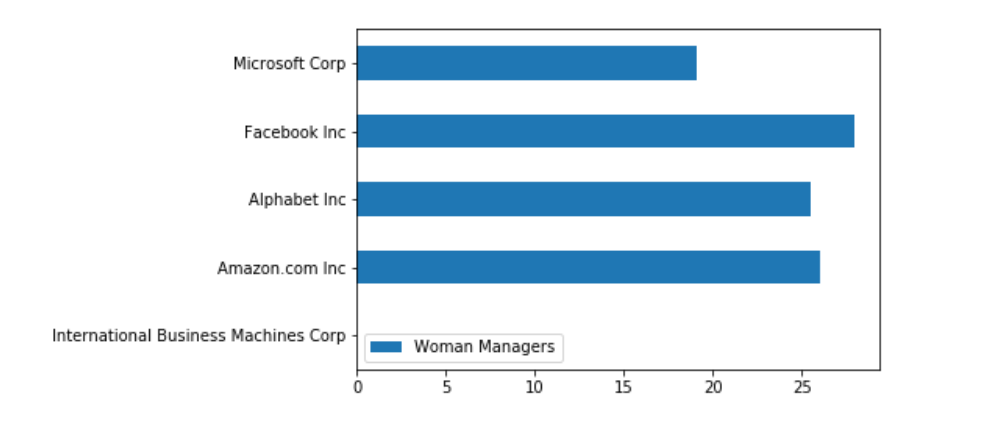
Base on the data, we do not have the report for IBM so it does not have the graph for IBM.
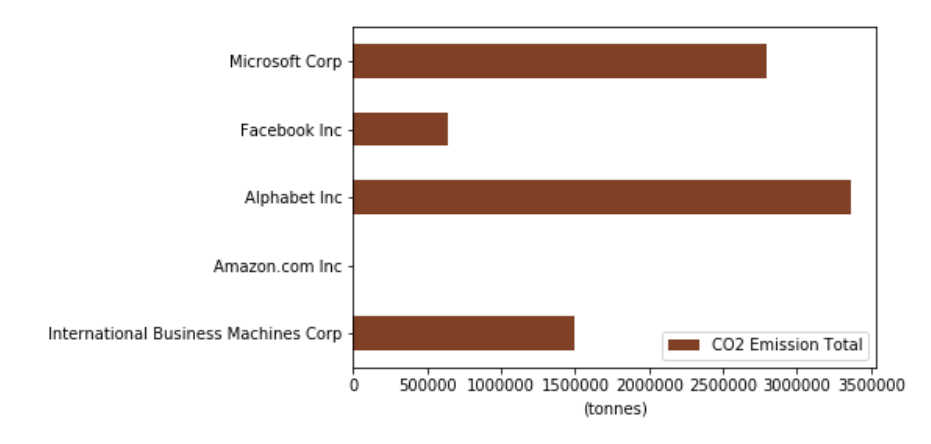
Based on the data, we do not have a CO2 report Amazon.
You can change or modify Python codes in the notebook to displaying data from other columns of the dataframe from the basic or full ESG Score.
REFERENCES
DOWNLOADS
Get In Touch

Related Articles

APIS RELATED TO THIS ARTICLE
SOURCE CODE
Popular Topics
Request Free Trial
Call your local sales team
Americas
All countries (toll free): +1 800 427 7570
Brazil: +55 11 47009629
Argentina: +54 11 53546700
Chile: +56 2 24838932
Mexico: +52 55 80005740
Colombia: +57 1 4419404
Europe, Middle East, Africa
Europe: +442045302020
Africa: +27 11 775 3188
Middle East & North Africa: 800035704182
Asia Pacific (Sub-Regional)
Australia & Pacific Islands: +612 8066 2494
China mainland: +86 10 6627 1095
Hong Kong & Macau: +852 3077 5499
India, Bangladesh, Nepal, Maldives & Sri Lanka:
+91 22 6180 7525
Indonesia: +622150960350
Japan: +813 6743 6515
Korea: +822 3478 4303
Malaysia & Brunei: +603 7 724 0502
New Zealand: +64 9913 6203
Philippines: 180 089 094 050 (Globe) or
180 014 410 639 (PLDT)
Singapore and all non-listed ASEAN Countries:
+65 6415 5484
Taiwan: +886 2 7734 4677
Thailand & Laos: +662 844 9576