
Author

Introduction
This article is Part 2 of a two-part troubleshooting guide. · Part 1: Verify LSEG Workspace and Data API Proxy · Part 2: Verify the LSEG Data Library for Python |
The first article in this series focused on verifying the LSEG Workspace Data API Proxy, which serves as the bridge between desktop applications and an authenticated Workspace session. Once you have confirmed that Workspace and the Data API Proxy are functioning correctly, the next step is to validate the Python environment and application configuration.
This article focuses on troubleshooting connectivity issues within the LSEG Data Library for Python and Python environments. Common problems include library installation issues, incompatible Python versions, incorrect session configuration, proxy and network restrictions, and environment-related conflicts.
By following the steps in this guide, you will learn how to:
- Verify that the Python environment is configured correctly.
- Confirm that the necessary LSEG libraries are installed and up to date.
- Test desktop session creation using the LSEG Data Library for Python.
- Enable diagnostic logging for the Python application.
- Identify and resolve common configuration and environment issues.
- Collect troubleshooting information before contacting LSEG Support.
This guide assumes that you have already completed the checks described in Part 1: Troubleshooting Workspace Session Connections (Data API Proxy) and have verified that Workspace is running, authenticated, and able to communicate with the Data API Proxy successfully.
The following sections provide a structured, step-by-step approach to identifying and resolving these issues.
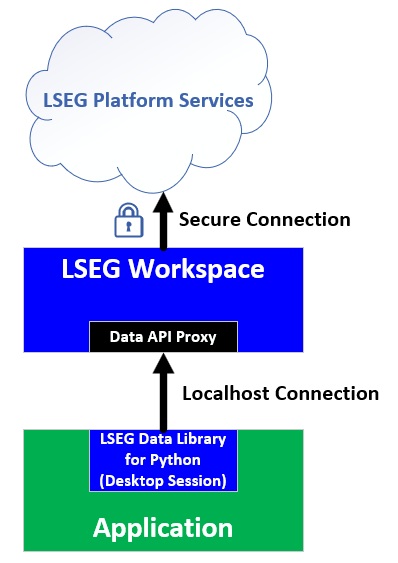
When connection issues occur, the problem can originate from several layers, including the Python environment, library configuration, Data API Proxy connectivity, or Workspace itself. This guide helps isolate each layer so you can quickly determine where the issue resides.
The command should return the installed package version.
If the Library is not installed, run the following command to install the library.
If necessary, upgrade to the latest available version:
Also verify that the package is installed in the same Python environment used to execute your application.
Common Installation Issues
Some frequent problems include:
- Multiple Python environments
- Virtual environment mismatch
- Outdated package versions
- Incomplete installations
These issues may prevent the application from using the expected library version.
Step 2: Enable Debug Logging and Verify Desktop Session Connectivity
The LSEG Data Library supports logging through both application code and a configuration file (lseg-data.config.json). In this step, you will use Python code to enable debug logging and verify that the library can connect successfully.
Run the following Python code.
This code enables file-based debug logging and creates a log file named lseg-data-lib.log in the current working directory. The log file contains detailed diagnostic information from the LSEG Data Library.
The code then opens a Desktop session and retrieves the Company Common Name for the instrument LSEG.L. If the library is configured correctly and the connection is successful, the output should look similar to the following:
This output indicates that the LSEG Data Library can successfully connect to the Data API Proxy and retrieve data. If any errors occur, the debug log file may contain valuable diagnostic information that can help identify the cause of the issue. You can share the log file with the Developer Community Q&A Forum or the Developer Relations team for further analysis and assistance.
Note: Before sharing the log file, carefully review its contents and remove any personal, sensitive, or confidential information, such as usernames, application keys, access tokens, file paths, or other private data. This helps protect your security and privacy while enabling others to investigate the issue.
Benefits of Debug Logging
Debug logs help identify:
- Session activity
- Data API Proxy connectivity
- Authentication processing
- Request and response handling
- API exceptions
When a connection problem occurs, these logs will often reveal the exact stage at which the process failed.
Required Output for This Step:
- The debug lseg-data-lib.log file.
Note: Replace the TCP port (9001) in the url variable with the port used by your Data API Proxy (Step 2 in Part 1) and change the <localhost> in the url variable to localhost.
This code uses the Python httpx library to send an HTTP POST request directly to the Data API Proxy and perform a handshake operation. Because the request bypasses the LSEG Data Library, it helps determine whether the issue originates from the library itself or from the underlying Python environment and connectivity setup.
If the request succeeds and returns an HTTP 200 (OK) response, it confirms that the Python environment can communicate with the Data API Proxy. A successful response will look similar to the following:
Any remaining issues are therefore more likely related to the LSEG Data Library configuration, library dependencies, session initialisation, or application code. If the request fails, the error details can help identify connectivity, networking, environment, or operating system-related problems.
Required Output for This Step:
- The output of the Python script
Step 4: Check Python Environment
This step collects information about your Python environment, which can help identify issues related to Python configuration, package installation, dependency conflicts, or virtual environment setup.
Run the following commands:
Python Version
Check the Python version:
Virtual Environment
Check the active Python virtual environment:
LSEG Data Library
Check the installed LSEG Data Library package:
Installed Python Packages
List all installed Python packages and their versions:
The output should look similar to the following:
Save the command output to a text file and share it, together with the information collected in the previous troubleshooting steps, when posting a question on the Developer Community Q&A Forum or when requesting further assistance. This information helps others verify your Python environment and identify potential compatibility or dependency issues more efficiently.
Note: Before sharing the output, review the file and remove any personal, sensitive, or confidential information, such as user names, directory paths, access tokens, application keys, or other environment-specific details.
Required Output for This Step:
- A text file containing the Python version, a virtual environment variable, the lseg-data library version, and a list of installed libraries.
Flow Summary
This article focuses on verifying the LSEG Data Library for Python after the Data API Proxy has been confirmed to be running correctly. Follow the flowchart below to identify and isolate issues related to the Python environment, library configuration, or application code.
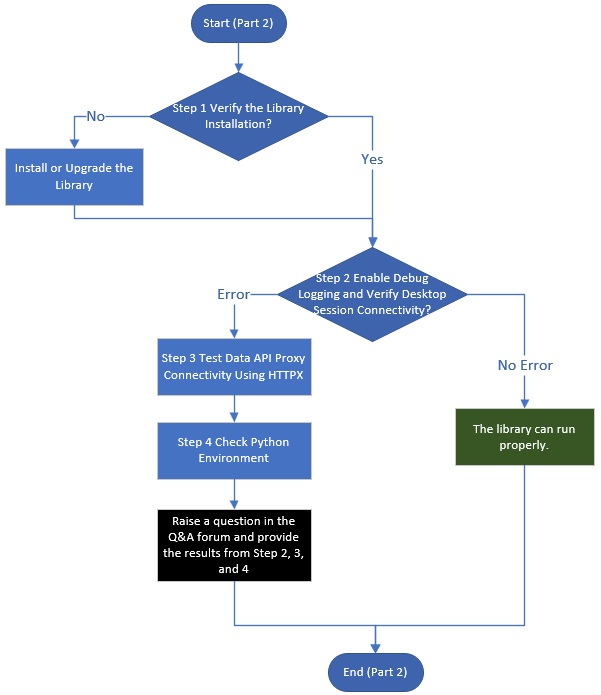
In short, after installing the library, if Step 2 fails, submit a question to the Developer Community Q&A Forum and include the following information:
- The debug log file generated in Step 2
- The output from Step 3
- The Python environment information collected in Step 4
Providing these details will help the community and the Developer Relations team investigate the issue more effectively and identify the root cause more quickly.
Contacting the Developer Relations Team
If you have completed all troubleshooting steps in this article and the issue persists, you can seek assistance from the LSEG Developer Community Q&A Forum. The forum is monitored by Developer Relations and API specialists who can help investigate issues related to the LSEG Data Library, Desktop Sessions, authentication, and API usage.
Before posting a question, gather the information collected throughout this troubleshooting process. Providing detailed diagnostic information significantly reduces investigation time and helps others reproduce and understand the issue more quickly.
Workspace and Data API Proxy
· Required information as mentioned in Part 1
Python Environment
· Python version (Step 4)
· LSEG Data Library version (Step 4)
· Virtual environment information (Step 4)
· Installed Libraries (Step 4)
Diagnostic Information
· The result when using other Python HTTP libraries (Step 3)
· lseg-data-lib.log: The LSEG Data Library for Python debug log file (Step 2)
Providing this information upfront often enables the Developer Relations Team to identify the root cause much more quickly and provide actionable recommendations.
Summary
This article explains how to troubleshoot connection issues when using the LSEG Data Library for Python with LSEG Workspace. It walks developers through checking that the library is installed correctly, enabling debug logging, testing the connection to the Data API Proxy, and verifying the Python environment. By following these steps, you can identify whether the problem is caused by the Python setup, library configuration, or application code, and collect useful diagnostic information before contacting the Developer Community or Developer Relations Team for assistance.
