
Author

- Introduction
- Architecture Overview
- Step 1: Confirm Workspace Is Running
- Step 2: Verify the Data API Proxy Status
- Step 3: Verify the Data API Proxy Endpoint
- Step 4: Collect Workspace Version Information
- Step 5: Collect Workspace Debug Logs
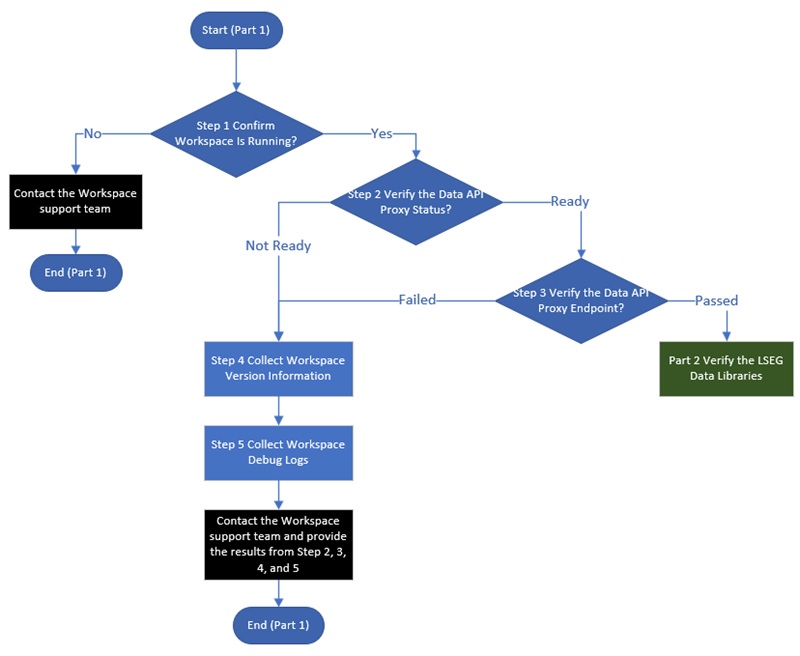
- Flow Summary
- Escalating to the Workspace Support Team
- Summary
Introduction
This article is Part 1 of a two-part troubleshooting guide.
|
The Data API Proxy is a local service provided by LSEG Workspace that enables applications to access LSEG data services through an authenticated Workspace session. Desktop applications, including the LSEG Data Library for Python, rely on the Data API Proxy to communicate with Workspace and access LSEG content.
When applications fail to create a desktop session or retrieve data, the root cause is often related to Workspace initialization, authentication, or the Data API Proxy itself. Before troubleshooting application code or API libraries, it is important to verify that Workspace and the Data API Proxy are functioning correctly.
This article is the first in the A Step-by-Step Guide to Troubleshooting Workspace Session Connections series and focuses on the LSEG Workspace Data API Proxy component. It provides a structured approach to:
- Verify that Workspace is running correctly.
- Confirm that the Data API Proxy is operational.
- Validate connectivity to the Data API Proxy endpoint.
- Enable debug logging.
- Collect diagnostic information for the Workspace Support team.
Architecture Overview
When an application uses a Desktop Session, it does not connect directly to LSEG services. Instead, it connects to the Data API Proxy running locally on the same machine. The Data API Proxy uses the authenticated LSEG Workspace session to securely access LSEG content on behalf of the application.
The following diagram illustrates the relationship between applications, the Data API Proxy, Workspace, and LSEG Platform services:
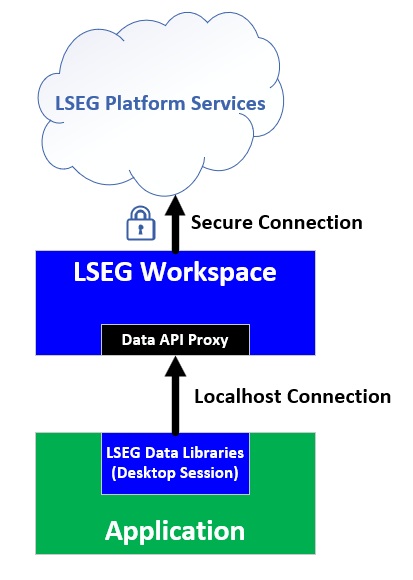
Because several components are involved, connectivity problems can occur at different layers:
- LSEG Workspace is not running or not authenticated
- The Data API Proxy is not available
- The application cannot connect to the Data API Proxy
- Workspace cannot connect to LSEG services
The purpose of this guide is to verify each layer and identify where the failure occurs before collecting diagnostic information for further investigation.
Step 1: Confirm Workspace Is Running
Before performing any technical investigation, verify that LSEG Workspace is:
- Launched successfully
- Logged in with a valid user account
- Fully initialized and operational
If Workspace is not running or the user session has not been authenticated, desktop session connections from Python will fail because the Data API Proxy depends on an active Workspace instance.
Typical Symptoms
You may encounter errors such as:
- Failed session creation
- Connection refused
- Timeout exceptions
- Desktop session initialization failures
When these errors occur, first confirm that Workspace is open and the user is signed in successfully. If you are unable to start or login to LSEG Workspace, please contact the Workspace support team directly via LSEG Support.
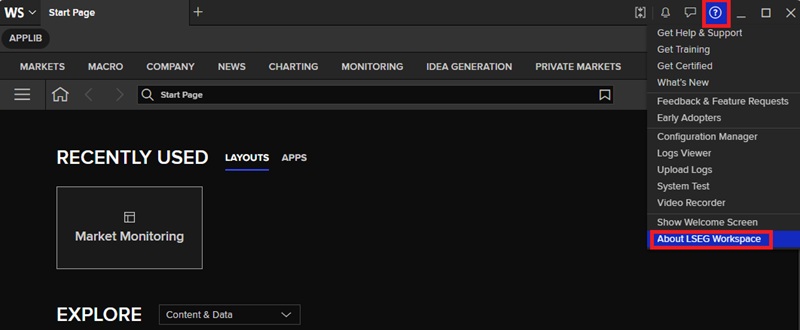
On the About LSEG Workspace page, select Data API Proxy from the sidebar.
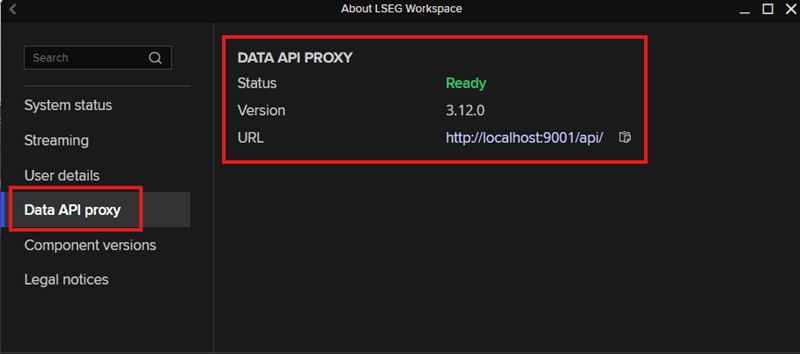
The Data API Proxy page displays:
- Status
- Version
- URL
The most important field is Status. A status of Ready indicates that the Data API Proxy service has started successfully and is ready to accept API connections from client applications, such as the LSEG Data Library for Python. The URL shown in this view will be used in Step 3 to verify the Data API Proxy endpoint.
If the status is anything other than Ready, proceed to:
These diagnostics will be required when working with the Workspace Support Team.
Required Output for This Step:
- A screenshot of the Data API Proxy Status.
Step 3: Verify the Data API Proxy Endpoint
Even if the Workspace user interface reports that the proxy is Ready, it is often useful to verify the proxy endpoint directly. The proxy endpoint URL can be obtained from the URL field shown in the previous step. You can verify the proxy endpoint using either a web browser or Windows PowerShell.
Note: For the examples in this article, the proxy endpoint is localhost:9001/api/.
Web Browser
Open a browser and navigate to the following URLs.
- localhost:9001/api/
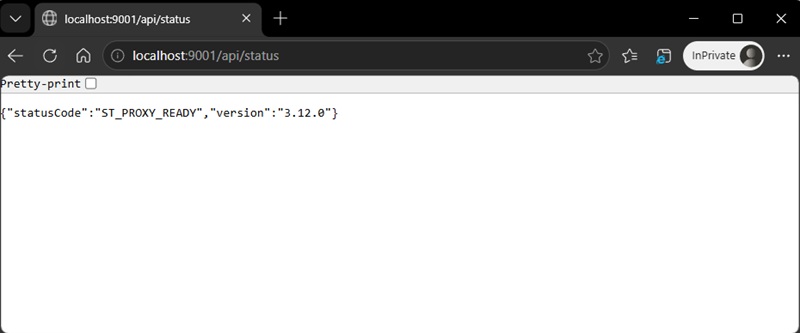
- localhost:9001/api/status
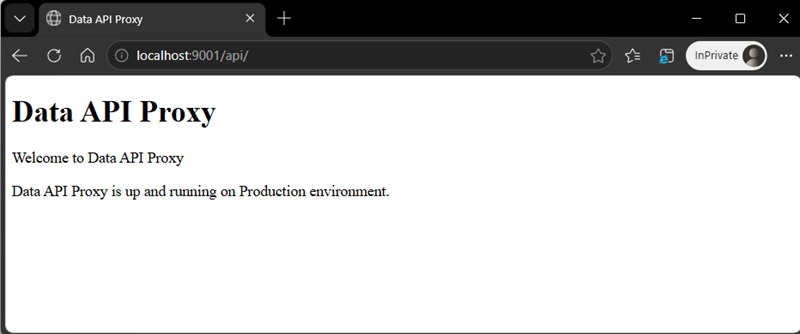
The outputs will look like this:
PowerShell
PowerShell can be used to send an advanced request to verify the proxy endpoint. The following example sends a HTTP POST request to perform a handshake with the Data API Proxy. This test helps confirm that the proxy is running correctly and can accept API requests.
Note: Verify that the URL specified in the -Uri parameter matches your proxy endpoint and change <localhost> in the script to localhost.
If the Data API Proxy is operating correctly, you should receive an access token in the response, along with an HTTP status code 200 (OK).
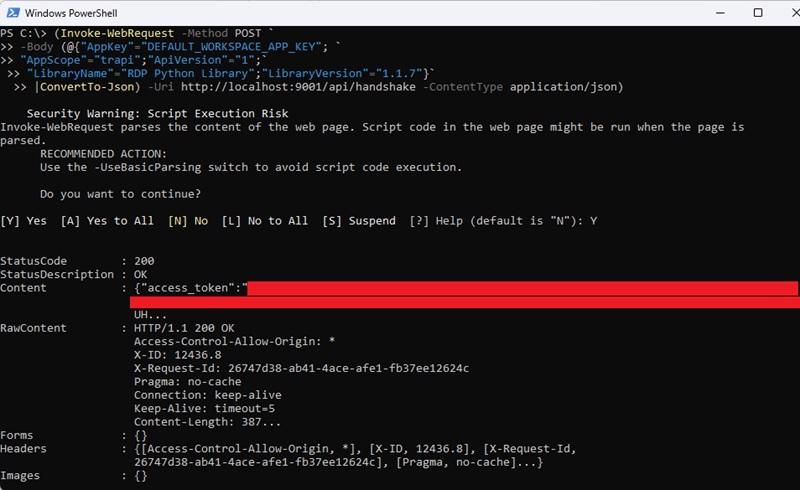
If all tests are successful, it is a strong indication that the Data API Proxy is running correctly. You can now proceed to Part 2 of this series to verify the LSEG Data Library for Python.
If the endpoint cannot be reached or does not return the expected response, follow Step 4 and Step 5 to collect additional diagnostic information. Once collected, provide the information to the Workspace Support Team for log analysis and further investigation.
Required Output for This Step:
- Screenshots from a web browser.
- The output of the PowerShell command.
Step 4: Collect Workspace Version Information
If you have reached this step, it indicates that the Data API Proxy is not running properly. This step, together with the next one, is intended to gather the information required by the Workspace Support Team to investigate the issue.
The LSEG Workspace version is one of the most important pieces of information required for troubleshooting. Providing the version number helps ensure that all parties involved are analysing the issue in the same software environment and can accurately identify any version-specific problems or known issues.
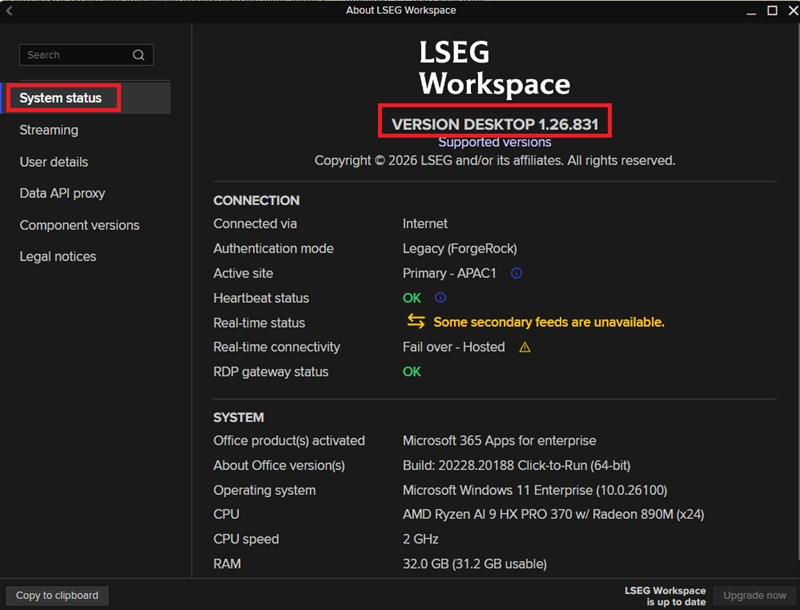
To determine the LSEG Workspace version, open and sign in to LSEG Workspace. From the Help menu, select About LSEG Workspace.
On the System Status page, you will find the LSEG Workspace version number. Record the version information or capture a screenshot of the page and provide it to the Workspace Support Team as part of your troubleshooting information.
Required Output for This Step:
- A screenshot of the System Status window.
Step 5: Collect Workspace Debug Logs
If the Data API Proxy is not running correctly, the Workspace Support Team may require debug logs to investigate the issue. Debug logging provides detailed information about the startup process and can help identify configuration, connectivity, or service-related problems.
To collect debug logs, you must first enable Workspace debug logging, then reproduce the issue, and finally gather the generated log files.
Enable Debug Logging
The debug logging can be enabled in the Workspace Configuration Manager. Open and sign in to LSEG Workspace. From the Help menu, select Configuration Manager.
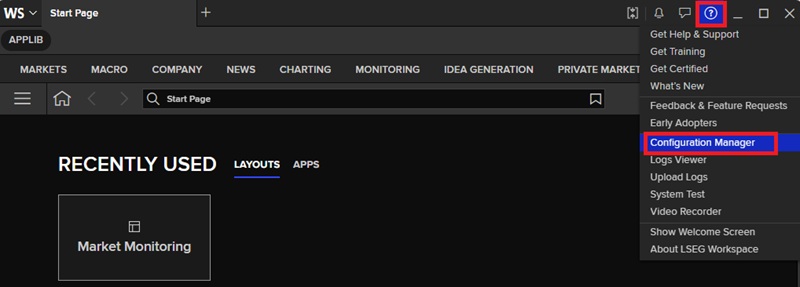
On the LSEG Workspace Configuration Manager page, select Logs from the sidebar, check the Debug under the Trace Level, save the Logs Folder Full path, and click on the APPLY button.
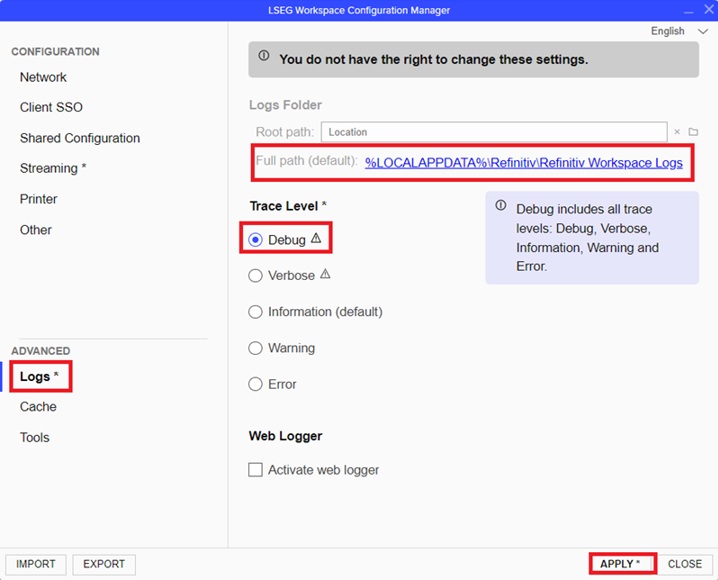
If the issue persists, collect the relevant log files from this location and provide them to the Workspace Support Team for further analysis.
The log files are stored in a subdirectory named:
The primary log file required for troubleshooting is node-sxs.<DATE>.p<PID>.log. For example:
If the Data API Proxy starts successfully, you should see entries similar to the following in the log file:
These logs provide detailed diagnostic information that can help the Workspace Support Team identify and investigate the root cause of the issue.
When contacting the Workspace Support Team, provide the collected log files together with the information gathered in Step 4 and Step 5. This information helps the support team analyse the issue more effectively and determine the appropriate resolution.
Note: After collecting the log files, change the Trace Level back to Information and restart LSEG Workspace. This prevents unnecessary verbose logging and helps maintain normal application performance.
Required Output for This Step:
- The node-sxs debug log file.
Escalating to the Workspace Support Team
If the Data API Proxy is not functioning correctly after the previous checks, contact the Workspace Support Team and provide:
Environment Information
Diagnostic Evidence
- Data API Proxy status screenshot (Step 2)
- /api/status response (Step 3)
- Handshake test results (Step 3)
- node-sxs log files (Step 5)
Providing these details upfront enables faster analysis and reduces back-and-forth communication.
Summary
This article provides a practical guide to troubleshooting LSEG Workspace Data API Proxy connectivity issues. It walks developers through verifying that Workspace is running and authenticated, checking the Data API Proxy status, testing the proxy endpoint, and collecting diagnostic information such as Workspace version details and debug logs. By following these steps, users can determine whether connection problems originate from Workspace, the Data API Proxy, or their application before escalating the issue to the Workspace Support Team.
