
Author

Jirapongse Phuriphanvichai
Developer Advocate
Introduction
Accessing historical market data is a common requirement for analytics, reporting, and financial modeling. The London Stock Exchange Group (LSEG) Data Platform provides APIs for retrieving historical pricing data, which can be integrated directly into Power BI using Power Query (M language).
There are several ways to bring LSEG data into Power BI. In addition to using Power Query, developers can also leverage Python integration with the LSEG Data Library, or build custom Power BI connectors for deeper integration scenarios. This article focuses specifically on using Power Query, which is often the simplest and most portable approach.
This document explains how to authenticate, call the API, and transform the results into a usable format.
Power Query
Power Query is a data transformation and data preparation engine built into Power BI (and Excel) that allows users to connect to various data sources, clean, reshape, and combine data using a functional language called M. It is particularly useful for handling API-based data, as it enables developers to send web requests, parse JSON responses, and transform nested data structures into tabular formats suitable for reporting and analysis.
To begin working with Power Query, you first need to open the Power Query Editor, which is the environment used for data preparation and transformation.
Start by launching Power BI Desktop on your computer. Once the application is open, you will see the main interface where reports and visualizations are created. From there, navigate to the Home tab on the top ribbon. In this tab, click on the Transform Data button.
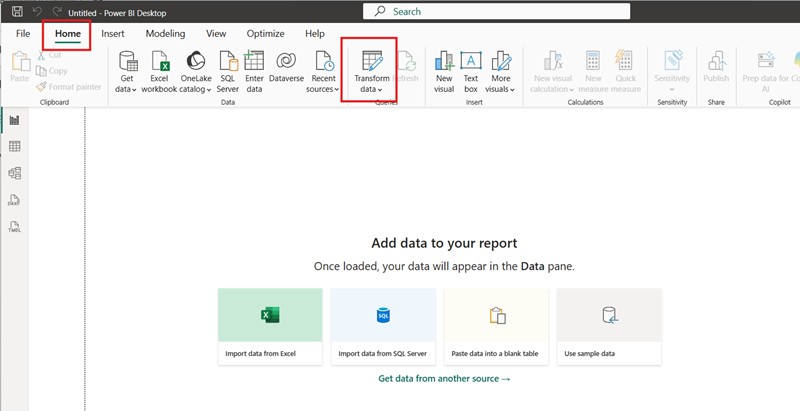
When you select this option, Power BI opens a separate window called the Power Query Editor. This editor is specifically designed for managing your data before it is loaded into the report.
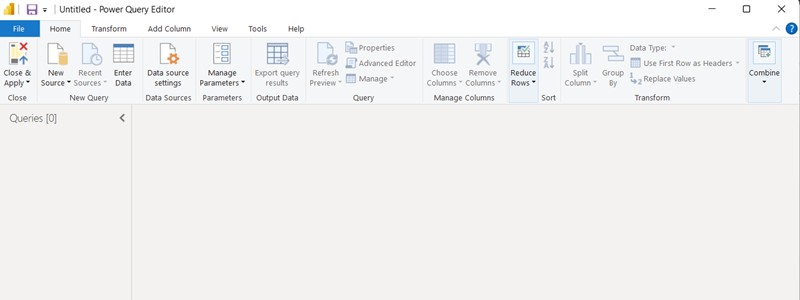
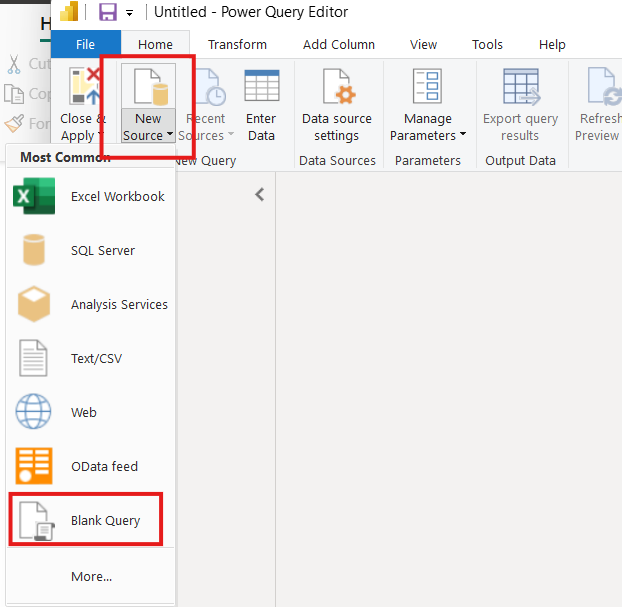
Inside the Power Query Editor, you can create a new query by selecting Blank Query from the New Source menu.
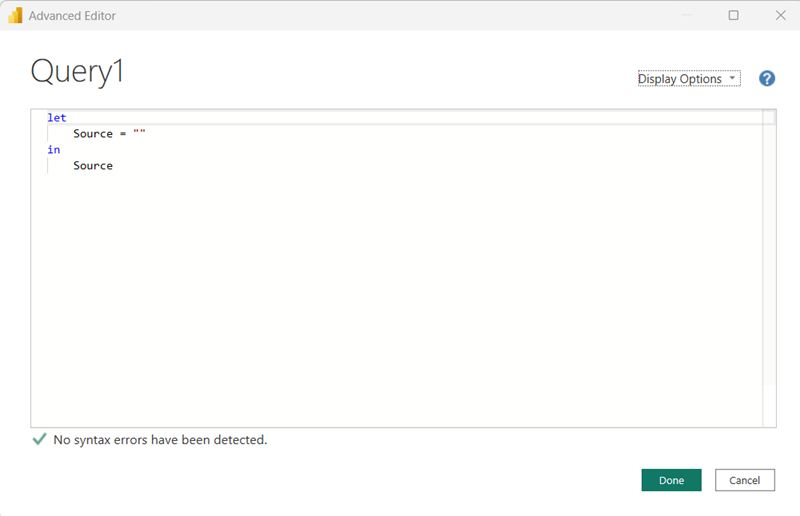
A new query (typically named Query1) will appear in the Queries pane. Right‑click the query and select Advanced Editor, or click the Advanced Editor button on the Home tab.
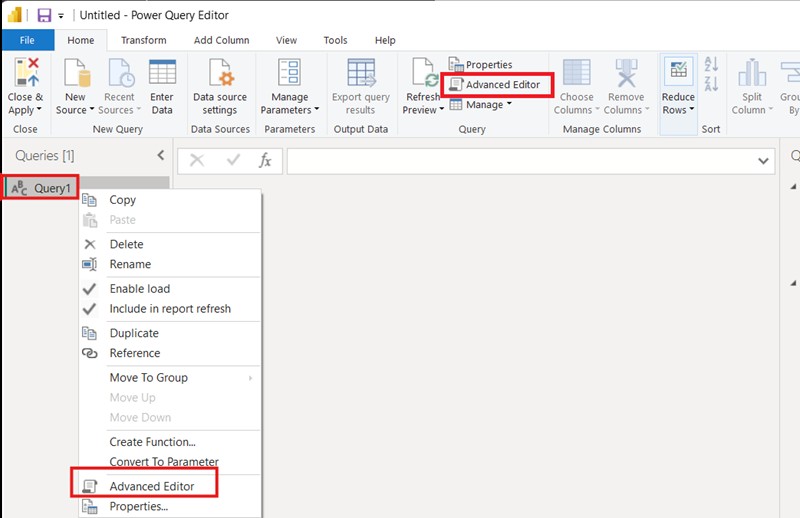
This action opens the Advanced Editor window, where you can write or modify Power Query code using the M language.
Historical Pricing APIs
The LSEG Data Platform provides Historical Pricing APIs that allow users to retrieve time series market data such as prices, volumes, and other financial indicators. These APIs support flexible query parameters including instrument universe (RICs), fields, date ranges, and intervals.
Commonly used endpoints are:
- https://api.refinitiv.com/data/historical-pricing/v1/views/events/
- https://api.refinitiv.com/data/historical-pricing/v1/views/interday-summaries/
- https://api.refinitiv.com/data/historical-pricing/v1/views/intraday-summaries/
The response is typically returned in JSON format and may include nested structures, which need to be transformed inside Power Query before being used for reporting.
For more information regarding these endpoints, please refer to the LSEG Data Platform API Documents.
Power Query to Pull Historical Data from Historical Pricing APIs
This section outlines the steps and provides sample Power Query code for retrieving historical data from the Historical Pricing APIs.
Step 1: Authenticate (OAuth2 Token)
This step retrieves an OAuth2 access token required to call LSEG Data Platform REST APIs. The code sends a POST request with your client credentials and extracts the access_token field from the response.
This Power Query function (GetAccessToken) retrieves an access token from the LSEG Data Platform API by securely reading a Base64‑encoded credentials file (C:\SecureFolder\SecretCredentials.txt), decoding it into JSON, and extracting the required fields (username, password, and app key). It then builds an authentication request, sends it to the token endpoint, and returns the access token from the response. Error handling is applied at each step to ensure any failures are clearly reported.
The decoded credentials file is expected to be in JSON format like this:
The Base64 online tool can be used to encode and decode this JSON string.
The function returns an access token when invoked.

Note: Base64 encoding provides obfuscation only and does not offer meaningful protection for sensitive data. Its use may be acceptable in development, testing, local deployment scenarios, educational demonstrations, or internal prototypes where convenience outweighs security concerns and the likelihood of credential exposure is low. For production workloads, credentials should be stored and managed using a secure secrets management solution.
Step 2: Call the Historical Pricing APIs
This step uses the token retrieved in the previous to call the Historical Pricing API endpoints. The request body is constructed as JSON and sent via Web.Contents, while the Authorization header includes the Bearer token.
This Power Query function (GetHistoricalPrices) retrieves historical pricing data from the LSEG Data Platform Historical Pricing API for a specified Universe (instrument), Interval, Fields, Start, and End date range. It first obtains and validates an access token using GetAccessToken(), then determines which API endpoint to use (Interday Summaries, Intraday Summaries, or Events) based on the provided interval value. The function builds the appropriate query parameters, including interval/event type, requested fields, and date range, and constructs the final request URL. It then sends an authenticated REST API request using Web.Contents with a Bearer token, incorporating error handling at each critical step (token retrieval, URL construction, API call, and JSON parsing).
The function accepts five parameters:
- Universe (text) – An instrument (RIC) to retrieve data for such as "IBM.N" or "EUR=". This value is appended to the API endpoint URL.
- Interval (text) – Specifies the data frequency or event type:
- Interday intervals: P1D, P7D, P1W, P1M, P3M, P12M, P1Y
- Intraday intervals: PT1M, PT5M, PT10M, PT30M, PT60M, PT1H
- Event types: trade, quote, correction (multiple event types can be supplied as a comma-separated list)
- Fields (nullable text) – An optional comma-separated list of fields to return, such as "OPEN_PRC,HIGH_1,LOW_1,TRDPRC_1". If null, the API returns all available fields for the requested RIC.
- Start (text) – The start date/time for the requested data range, typically in ISO 8601 format (for example, "2024-01-01T00:00:00. 000000000Z" and "2024-01-01").
- End (text) – The end date/time for the requested data range, also typically in ISO 8601 format (for example, "2024-12-31T23:59:59.000000000Z" and "2024-12-31").
For example:
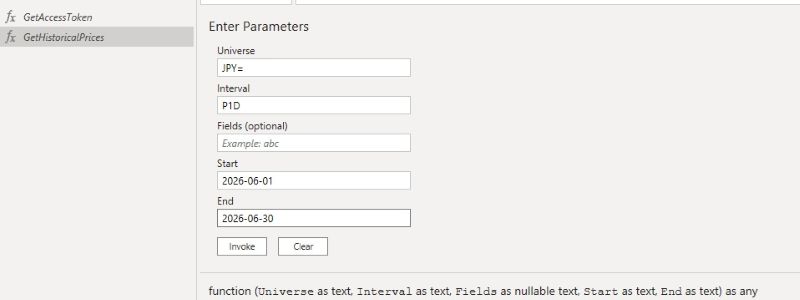
Retrieve daily historical data for JPY= from 2026-06-01 to 2026-06-30.
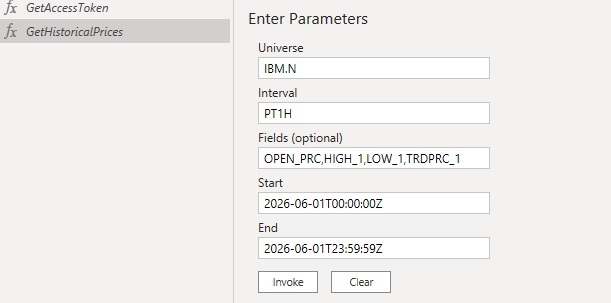
Retrieve hourly historical data for IBM.N from 2026-06-01T00:00:00Z to 2026-06-01T23:59:59Z (GMT).
Note: The code requests a new access token from the LSEG Data Platform authentication service each time the function is invoked. If the function is called frequently, the number of authentication requests may exceed the rate limits or usage thresholds enforced by the authentication service. A possible workaround is to store the access token in a Power Query Parameter and modify the function to retrieve the token from that parameter instead of requesting a new one for every call. However, Power Query parameters cannot be updated programmatically by M code, so the parameter value must be maintained manually.
Step 3: Transform JSON into Table
The API response is usually a list of records. This code converts the list into a table and expands the relevant fields into columns so they can be used in Power BI visualizations.
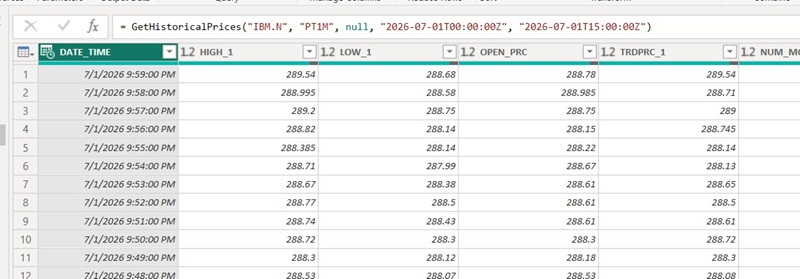
This Power Query code is incorporated into the GetHistoricalPrices function defined in Step 2. It safely transforms responses from the Historical Pricing APIs into a properly typed table by validating the response structure at each stage and providing clear error messages when required elements are missing or malformed. The code first extracts the root record, then retrieves the headers metadata and data rows, using the header definitions to generate the table's column names dynamically. It then builds a type mapping based on the metadata for each column, converting numeric fields to numbers, date-related fields to date or datetime types, and all other fields to text. The type mappings are applied to the table with additional error handling to catch any conversion issues. Finally, if the API response contains a status field indicating an error, the function returns the API's error message; otherwise, it outputs the fully formatted and typed table.
The output looks like this:
For an error, the output looks like this:

Step 4: Invoking the Function
To pull data, the GetHistoricalPrices function can be invoked with the required parameters. Then, the output table will be created.
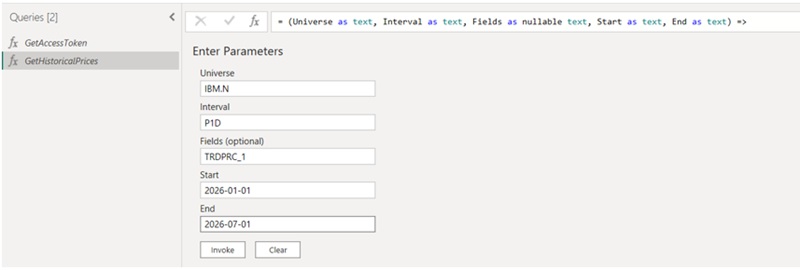
The output can be renamed to make it easier to reference.
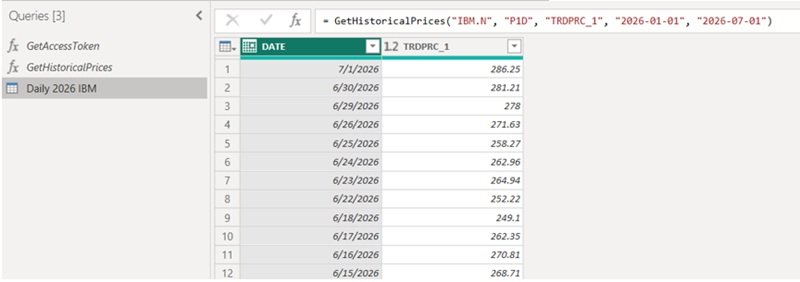
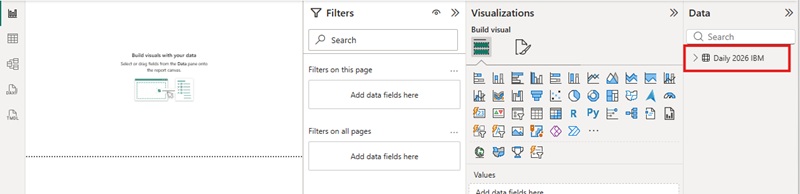
Then, the output table will be available in the Data section of Power BI.
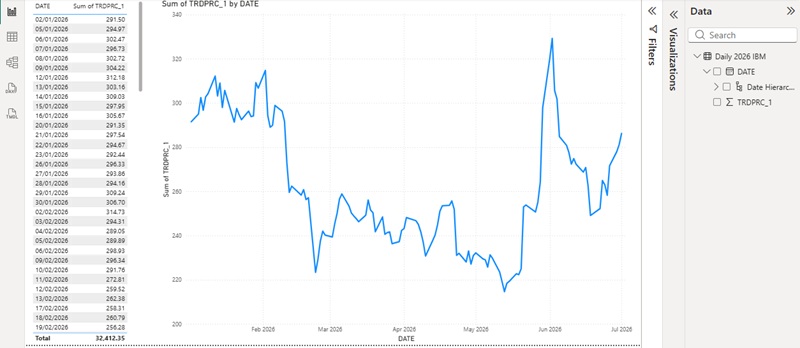
Finally, the data can be displayed in Power BI as tables or charts.
Summary
This guide demonstrated how to use Power Query (M) in Power BI to retrieve historical pricing data from the LSEG Data Platform. It covered the complete workflow, including OAuth2 authentication, calling Historical Pricing API endpoints, transforming JSON responses into structured tables, and loading the resulting data into Power BI reports. By encapsulating authentication, API access, and data transformation logic into reusable Power Query functions, developers and analysts can efficiently integrate LSEG market data into Power BI dashboards while maintaining a portable, scalable, and maintainable solution.
References
- London Stock Exchange Group (LSEG), LSEG Developer Community. [Online]. Available: https://developers.lseg.com/. Accessed: Aug. 2026.
- London Stock Exchange Group (LSEG), LSEG Data Platform Historical Pricing APIs. [Online]. Available: https://developers.lseg.com/en/api-catalog/lseg-data-platform/lseg-data-platform-apis. Accessed: Aug. 2026.
- London Stock Exchange Group (LSEG), LSEG API Documentation Portal. [Online]. Available: https://apidocs.refinitiv.com/Apps/ApiDocs. Accessed: Aug. 2026.
- Microsoft, Power Query Documentation. [Online]. Available: https://learn.microsoft.com/power-query/. Accessed: Aug. 2026.
- Microsoft, Power Query M Language Specification. [Online]. Available: https://learn.microsoft.com/powerquery-m/. Accessed: Aug. 2026.
- Microsoft, Web.Contents (Power Query M Function). [Online]. Available: https://learn.microsoft.com/powerquery-m/web-contents. Accessed: Aug. 2026.
- Microsoft, Json.Document (Power Query M Function). [Online]. Available: https://learn.microsoft.com/powerquery-m/json-document. Accessed: Aug. 2026.
- Microsoft, Power BI Desktop Documentation. [Online]. Available: https://learn.microsoft.com/power-bi/fundamentals/desktop-what-is-desktop. Accessed: Aug. 2026.
- Microsoft, Power Query Editor in Power BI Desktop. [Online]. Available: https://learn.microsoft.com/power-bi/connect-data/desktop-query-overview. Accessed: Aug. 2026.
- International Organization for Standardization (ISO), ISO 8601-1:2019 Date and Time Format. Geneva, Switzerland: ISO, 2019.
- J. Josefsson, The Base16, Base32, and Base64 Data Encodings, RFC 4648, Internet Engineering Task Force (IETF), Oct. 2006. [Online]. Available: https://www.rfc-editor.org/rfc/rfc4648.
- Register or Log in to applaud this article
- Let the author know how much this article helped you
If you require assistance, please
contact us here

Source Code
Related APIs
Related Articles
-
Using Power BI to visualize the data from LSEG Data Library for Python with Conda environment
-
How to integrate DSS/LSEG Tick History data into Power BI Desktop
-
Getting started using Azure Serverless Function with the Data Platform REST API
-
Getting Started with Refinitiv Data Platform
-
Getting started with Refinitiv Data Platform
Request Free Trial
Call your local sales team
Americas
All countries (toll free): +1 800 427 7570
Brazil: +55 11 47009629
Argentina: +54 11 53546700
Chile: +56 2 24838932
Mexico: +52 55 80005740
Colombia: +57 1 4419404
Europe, Middle East, Africa
Europe: +442045302020
Africa: +27 11 775 3188
Middle East & North Africa: 800035704182
Asia Pacific (Sub-Regional)
Australia & Pacific Islands: +612 8066 2494
China mainland: +86 10 6627 1095
Hong Kong & Macau: +852 3077 5499
India, Bangladesh, Nepal, Maldives & Sri Lanka:
+91 22 6180 7525
Indonesia: +622150960350
Japan: +813 6743 6515
Korea: +822 3478 4303
Malaysia & Brunei: +603 7 724 0502
New Zealand: +64 9913 6203
Philippines: 180 089 094 050 (Globe) or
180 014 410 639 (PLDT)
Singapore and all non-listed ASEAN Countries:
+65 6415 5484
Taiwan: +886 2 7734 4677
Thailand & Laos: +662 844 9576