Use Cases
With Customer Risk Screener (versions v4.7 and higher) it is possible to:
- Screen data from Custom Objects
- Screen data from other standard objects, for example Opportunities
- Create additional mappings for the Account/Contact/Lead objects that will allow you to create two or more screening cases for the same record AND screen different fields e.g. Account.Name AND Account.CustomName__c or screen one field against the entity type Organisation and another one for entity type Individual. Note this configuration will create multiple cases for the same source record.
With Customer Risk Screener version 6.2 and higher it is possible to automatically re-screen Screening Cases if the source record is updates.
Entity Types supported by version
CRS Version |
Entity Types |
Supports Automatic Screens | Supports Automatic Re-screens |
6.2 |
Vessels, Unspecified, Individual and Organisation |
YES | YES |
4.7+ |
Individual, Organisation |
YES | NO (records can be manually re-screened within the UI) |
Disclaimer
- The examples provided in this document are samples only and do not constitute recommendations or advice on how you should set up your company screening policies.
- We recommend that you test all flows in your sandbox environments prior to going to production.
- Following Salesforce best practice, you may wish to add the screening flows into existing Flows within your organisation for an object, again these must be tested before going live.
Example Use Case
In this example we are going to initate the automatic screening of a record from a custom object called "CO Individual" as soon as the record is created. If the fields of Name, Date of Birth, Nationality are edited on the record then we are going to automatically find and update the screening case and send it for re-screening. To achieve this we are going to perform 3 actions:
- Create a look up field on the screening case object to hold a relationship to the Custom Object
- Create a Flow that will create a screening case record and copy core data into it from the Custom Object
- Create a Flow that will send the screening case record created in step 2 to World-Check for screening
Note the above steps are necessary to support additional mappings for standard objects.
Preconditions:
1. Identify Group Ids
How to fetch all available GroupIds is covered in this quick start guide. You will need the GroupIds when building your flows.
2. Create custom fields for use in Flows
This flow is going to utilise two custom fields. These fields are NOT included in the package.
| Object | Field Label | Field Type | Comment |
| Screening Case Object | CO Individual* | Lookup Relationship the custom object you wish to screen | *Enter field label that describes the custom object you are screening and add it to the Screening Case page layout. In this example we are going to call it "CO Individual" and link to our custom object called "CO Individual" but ensure the label makes sense for your organisation. Note if you are creating custom mappings for the standard objects of Contact, Account Lead then there are already fields on the Screening Case object of those names that can be used instead. |
| Custom Object* | Primary Screening Case | Lookup Relationship to the Screening Case object | Will be populated by a Flow when the screening case is created. We can then use this field to easily identify which screening case we wish to update and rescreen should a field on the Account record change. This is covered in detail in the tutorial "Create Flows for Standard Mappings". |
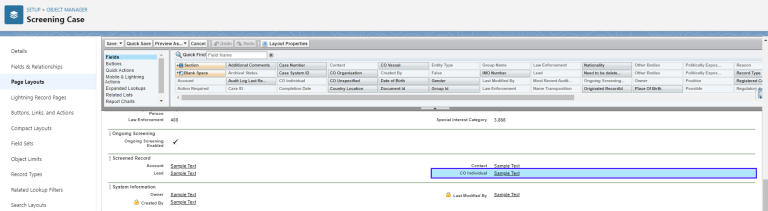
E.g. I have created a field CO Individual and added it to the Screening Case page layout for testing:
Flow 1. Create Screening Case for Custom Object/Mapping
Expected outcome: This flow will create a record in the Screening Case object when the record is created in the custom object, it will pass fields to the screening case from the custom object.
1. Navigate to flow builder. Setup > Process Automation > Flows > New Flow
2. Select “Record-Triggered Flow” > “Create”
3. In the pop-up box enter
Object: |
Select your custom object |
Trigger the Flow When: |
A Record is Created or Update |
Set Entry Conditions: |
None. Note it is best practice to set entry criteria so that the flow only triggers when the entry criteria is met. In the interests of simplicity for this demo we won't add entry criteria but we recommend that you do consider it. |
Optimize the Flow for: |
Actions and Related Records |
Include a Run Asynchronously path…: |
False |
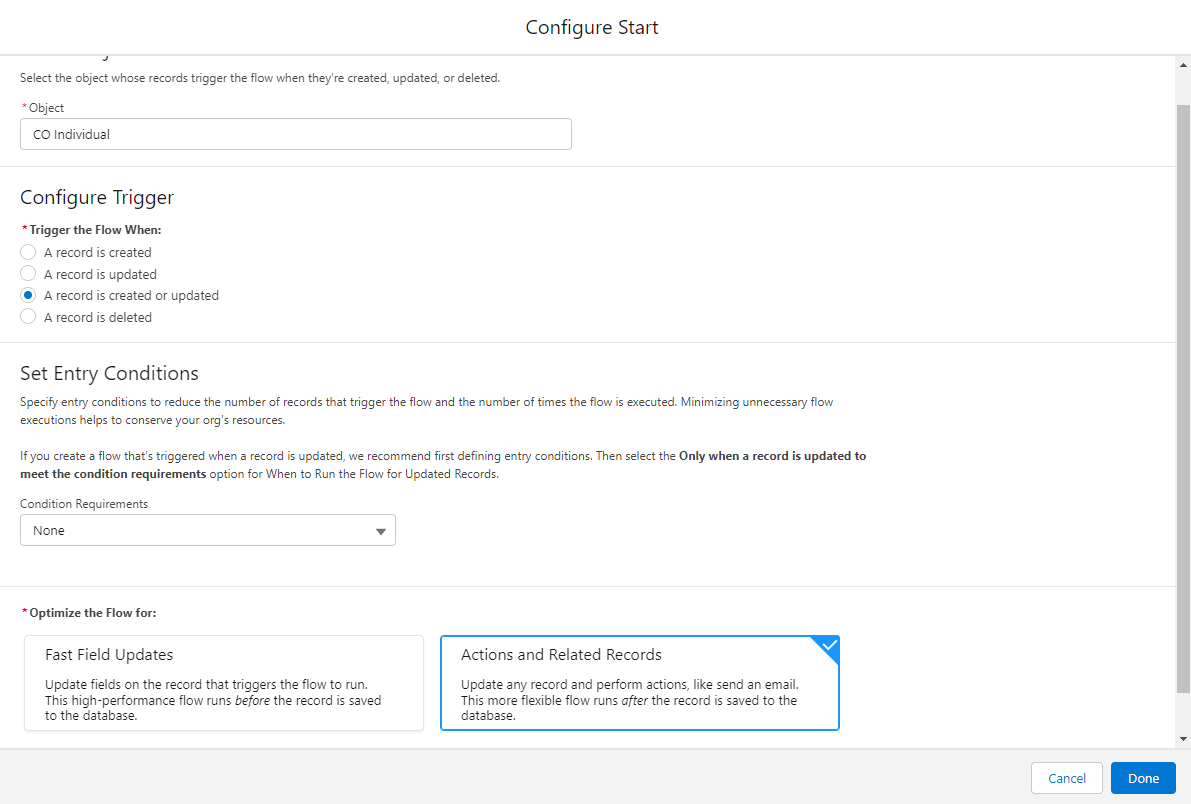
Select Done. Save it and give it a useful description. The next step is to add branches to the flow.
Click the + icon to add an element and add a "Decision". Give the Decision a name
We will create two branches or "outcomes":
1. Create: handles the initial creation of the screening case in this scenario we are immediately going to check to see that there isn't already a primary screening case linked to the record and if not then create a Screening Case as soon as the record is created and saved using the operator prior value is null. However select entry criteria that works for your organisation's needs.
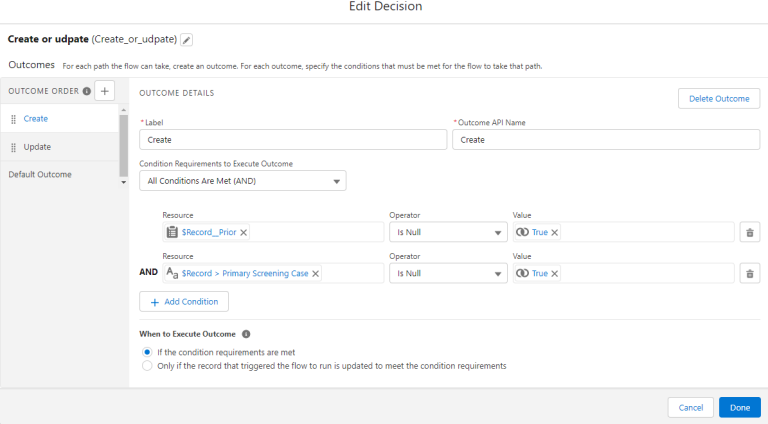
2. Update: handles any updates from the source record e.g. if the custom fields Name, DOB, Nationality, Gender, or Document ID changes.
Remember that you will need to specify custom condition logic as you only want to trigger this branch when a screening case exists AND one of the fields specified is updated. You also want to be very specific about what is changing on the record and only include updates to fields that you are syncing to World-Check. The Operators IsChanged or PriorValue are ways to achieve this. E.g. you don't want to be triggering API call outs if fields that are not relevant to the screening process are updated.
TIP! If you are using a scheduled time triggered Flow rather than realtime, you will need to split the update action out into it's own seperate Flow.
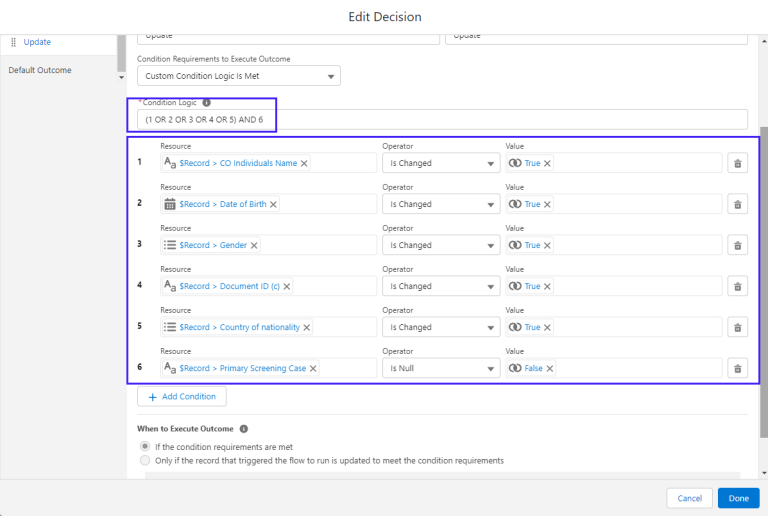
Click "Done" you now have two branches or "outcomes". The next step is to add "Actions" to the branches.

In the branch "Create" click on the + and select the element type of "Action". In the search box select "Create Record" a new pop-up window opens. Give the action a name and description and enter:
How Many Records to Create: |
One |
How to Set the Record Fields |
Use separate resources, and literal values |
Object: |
Screening Case |
Set Field Values for the Screening Case
Field |
Value |
Tr_wc1_Entity_Type__c |
INDIVIDUAL |
Tr_wc1_Originated_Recordid__c |
Record >Record ID |
| This represents the custom field you created on the Screening Case object. In this example our custom field is called CO_Individual__c | Record >Record ID |
tr_wc1__Thomson_Reuters_Group_Id__c |
Paste the Group ID you identified |
tr_wc1__Screened_Name__c |
Map the field that holds the name that you wish to screen |
| SECONDARY IDENTIFIERS*
|
Add mappings for any secondary identifier that you wish to pass. |
Secondary Identifiers*
Secondary Identifiers can help limit the number of matches returned, e.g. if you pass Nationality then any name matches returned that have a different nationality may automatically be resolved as False depending on your World-Check group settings. Variables used as Secondary Identifiers differ for each entity type. E.g. Date of Birth is relevant for Individuals but not Organisations. See the quick start guide for full list of possible secondary identifiers and mappings per entity type.
The optional secondary identifiers passed in this example are highlighted in green, in this example I am mapping some custom fields from my custom object that represent DOB, Country Location, Nationality, Place of Birth & Gender:
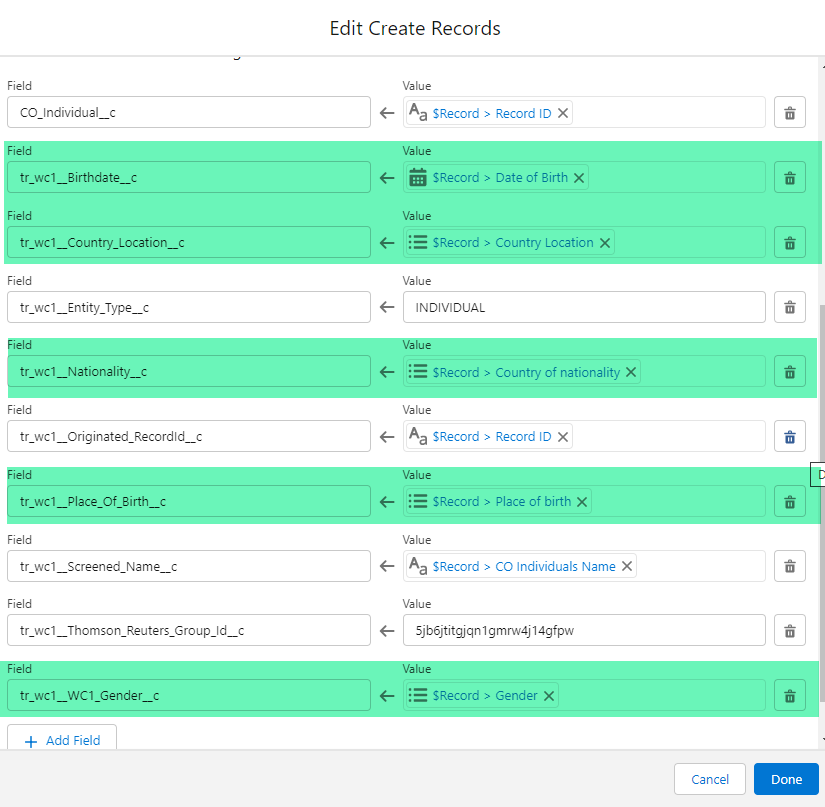
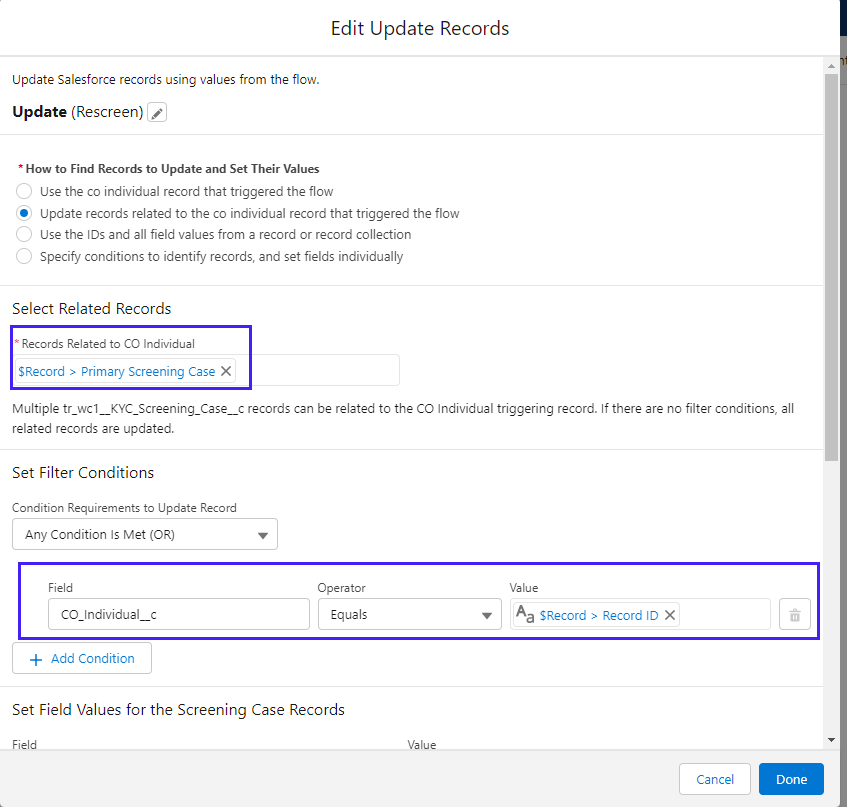
You are going to repeate this for the "update" screening case path, but you are going to use the action type of "Update Record". To do this we are going to leverage the field we created in the preconditions called "Primary Screening Case". Entering these parameters is going to tell the systems which Screening Case to update in Salesforce and in World-Check. If you have a many to one relationship model then you will need to use an alternative approach for identifying which screening case to update.
| How to find records to update and set their values | Update the records related to the "custom object" record that triggered the flow |
| Select Related Records | Use the "primary screening case" field that you created e.g. Record > Primary Screening Case |
| Set Filter conditions | You want to ensure that ONLY the screening record that has a relationship to the the custom object record is updated. To do this compare the IDs of the custom field you created on the Screening Case with the Record ID of the Custom Object |
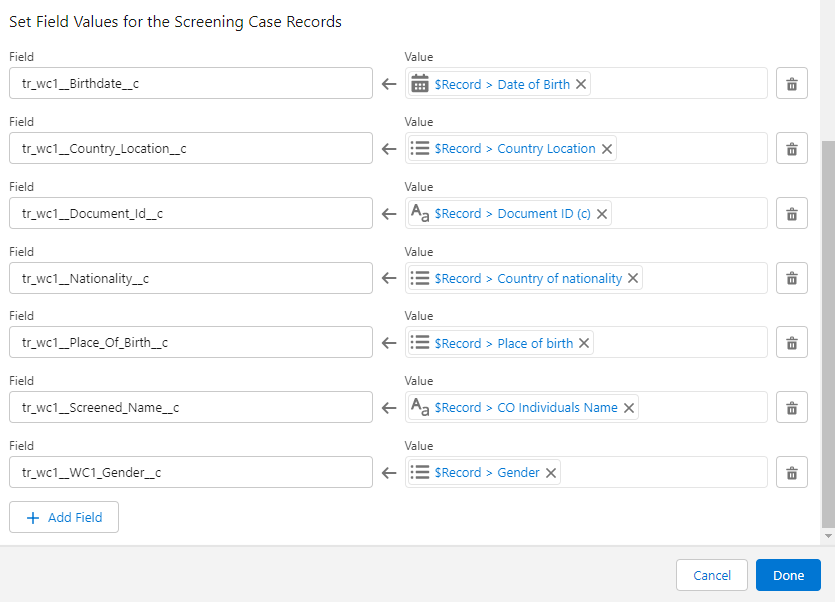
Scroll down and add the field mapping again.
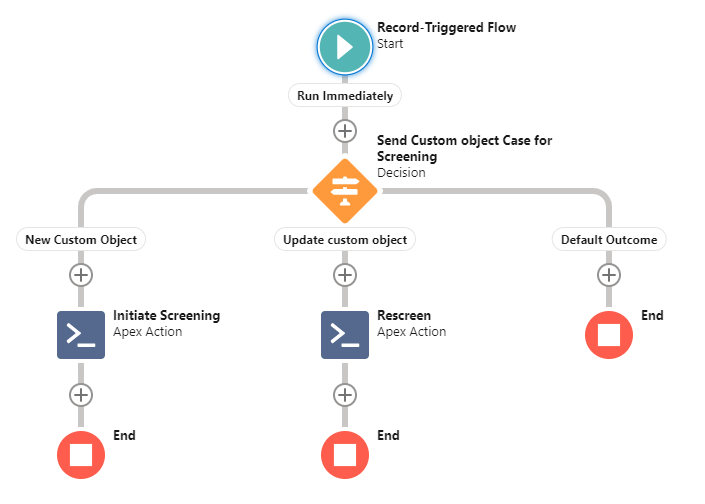
Your flow should now look like this:
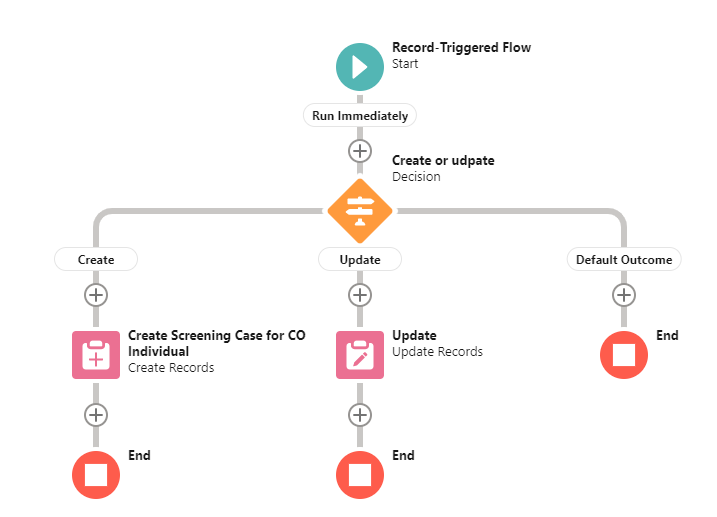
Save it, debug, activate and test. You are now ready to move onto the second Flow.
Flow 2. Initate the screening of the case created
Expected outcome: This flow will send the case you have just created or updated to be screened in World- Check and return the results.
Navigate to flow builder. Setup > Process Automation > Flows > New Flow.
Select “Record-Triggered Flow” > “Create”.
In the pop-up box enter:
Object: |
Select your custom object |
Trigger the Flow When: |
A Record is Created or Updated |
Set Entry Conditions: |
None. Again note it is best practice to set entry criteria so that the flow only triggers when the entry criteria is met. In the interests of simplicity for this demo we won't add entry criteria but we recommend that you do consider it. |
Optimize the Flow for: |
Actions and Related Records |
Include a Run Asynchronously path…: |
False |
Select Done
The next step is to add branches to the flow.
Click the + icon to add an element and add a "Decision". Give the Decision a name
We will create two branches or "outcomes":
1. New Custom Object: handles the initial creation of the screening case as soon as the case that has a value in the custom field "CO Individual" (or equivalent field you created on the Screening Case Object) is created. To do this it is going to use a new "IsNew" resource that you will create.
- Click "Add condition" > select "New Resource" > In the drop down select "Formula" > Data Type "Boolean" > Give it a Name IsNew > In the formula box type IsNew() > Click Done.
- Using the operator equals True you will check if the IsNew resource is new or existing.
- You are then going to check the field you created to hold the relationship to the custom object to see if it is populated or not using the operator Is Null = False.
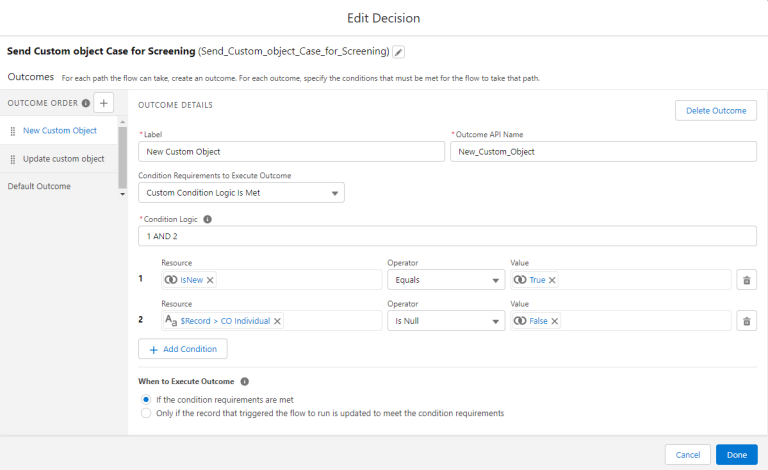
2. Update Custom Object: handles any updates from the source record e.g. if the Name, DOB, Document ID etc changes
Remember that you will need to specify custom condition logic as you only want to trigger this branch when one or more of the relevant fields are updated (red conditions 1-6) AND a screening case exists that is for your custom object (blue condition 8) AND the Screening Complete flag = TRUE (blue condition 9). You also want to be very specific about what is changing on the record and only include updates to fields that you are syncing to World-Check. The Operators IsChanged or PriorValue are ways to achieve this. E.g. you don't want to be triggering API call outs if fields that are not relevant to the screening process are updated.
TIP! If you are using a scheduled time triggered Flow rather than real-time, you will need to split the update action out into it's own separate Flow.
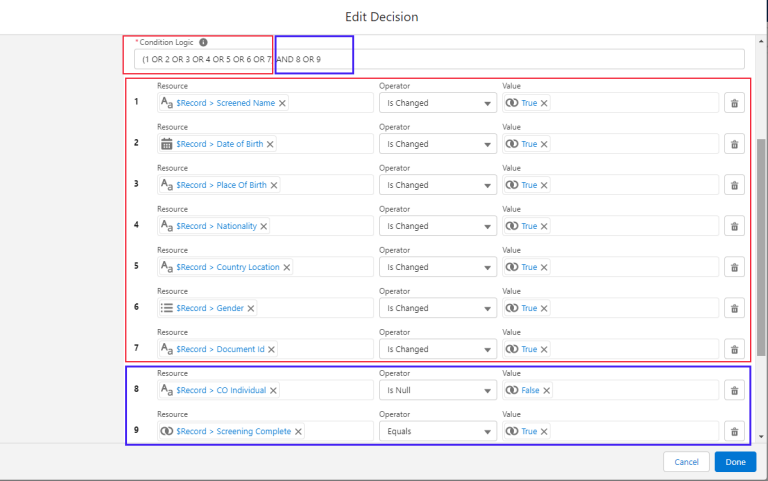
2. Update Screening Case: handles any updates from the source record e.g. if the Account Name, Billing Country or Document ID changes.
Remember that you will need to specify custom condition logic as you only want to trigger this branch when a screening case exists AND either the Account Name, Billing Country OR Document ID field are updated. You also want to be very specific about what is changing on the record and only include updates to fields that you are syncing to World-Check. The Operators IsChanged or PriorValue are ways to achieve this. E.g. you don't want to be triggering API call outs if fields that are not relevant to the screening process are updated.
TIP! If you are using a scheduled time triggered Flow rather than realtime you will need to split the update action out into it's own separate Flow.
In the branch "New Custom Object" on the + and select the element type of "Action". In the search box type "Automate Screening" and select the action apex-tr_wc1_tr_automateScreening. Click "Done"
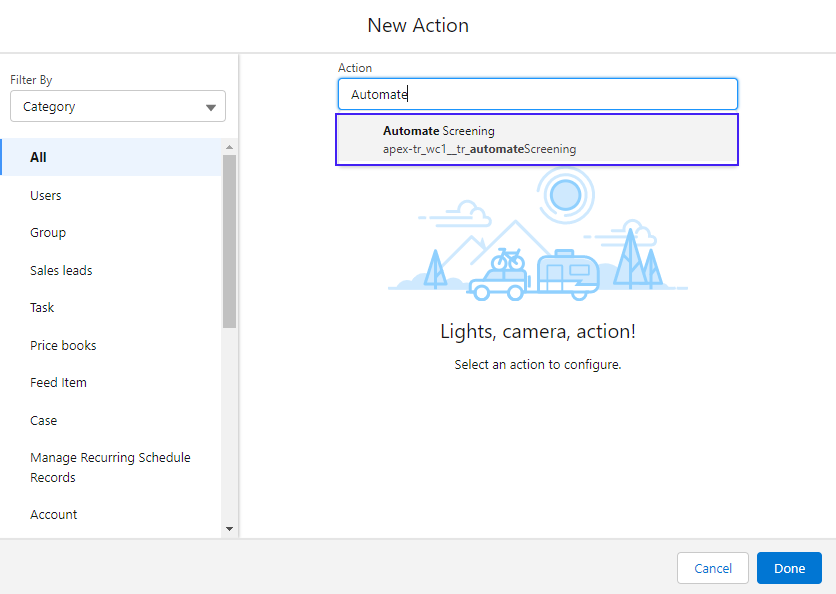
Give your Action a name and description and scroll down to the variables. You are going to set 3.
- enableMonitoring - this can be true or false. It defines whether a case is flagged for Ongoing Monitoring (OGS) at the point of creation or not. Find out more about OGS here.
- object - this should be "Custom Case"
- recordId - passs the Record.Id
The rest of the parameters can be left blank at this stage. Click Done.
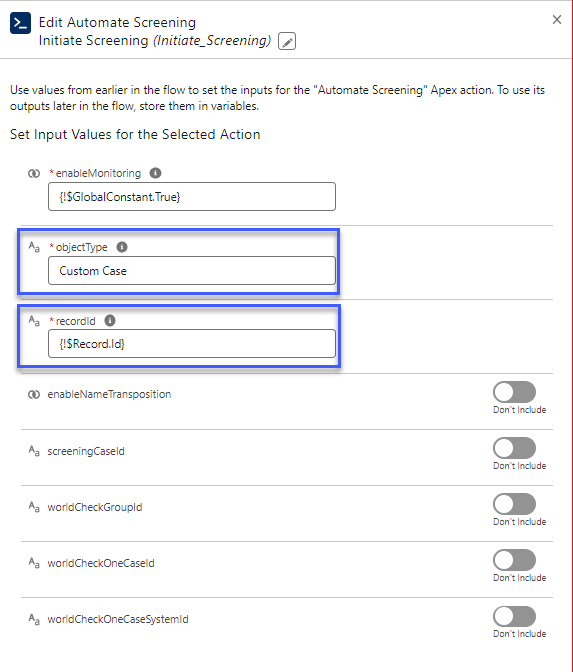
You are going to repeat this for the "update screening case" path but you are going to add three extra parameters. To do this you need to have a relationship between the Screening Case and the source record, we are going to leverage the field we created in the preconditions called "Primary Screening Case". Entering these parameters is going to tell the systems which Screening Case to update in Salesforce and in World-Check. If you have a many to one relationship model then you will need to use an alternative approach for identifying which screening case to update but you will still need to pass the 3 parameters.
| Parameter | Corresponding Field API Name | Field Label |
|---|---|---|
| screeningCaseId | Record.Primary_Screening_Case__c | Primary Screening Case |
| worldCheckOneCaseId | Record.Primary_Screening_Case__r.tr_wc1_Case_Id__c |
Case Id |
| worldCheckOneCaseSystemId | Record.Primary_Screening_Case__r.tr_wc1__Thomson_Reuters_Case_Id__c | Case System Id |
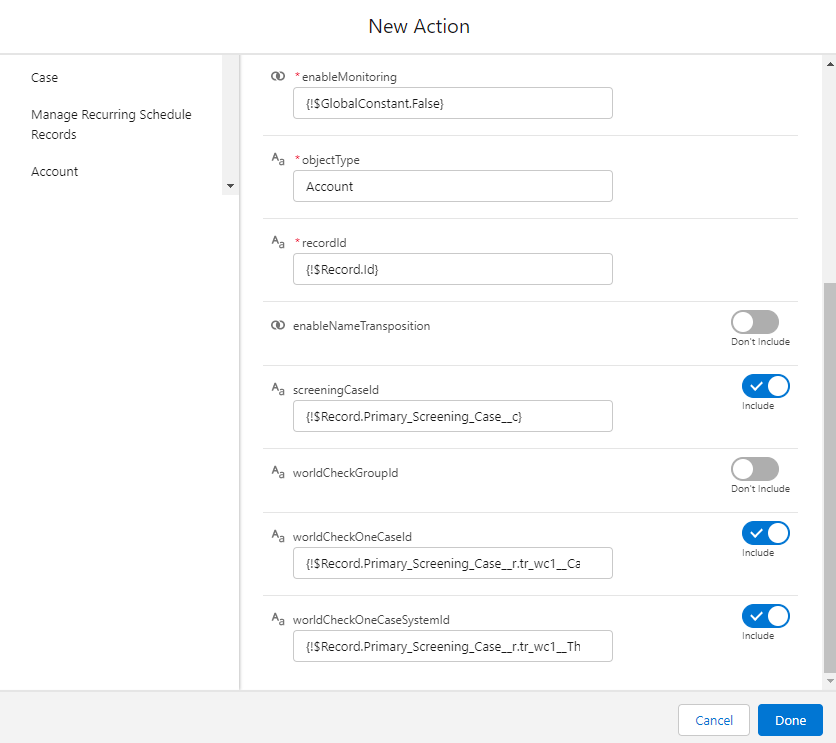
Your flow now looks like this and is ready to save and test: